Hubstaff Review: What We’d Tell You If We Didn’t Work Here

 11 min read
- Hubstaff connects time tracking, payments, invoicing, and workforce analytics in one platform, making it most valuable when teams need integrated workforce management.
- Productivity monitoring tools are highly configurable, but transparent communication with employees before rollout is essential to getting the most out of Hubstaff's monitoring features.
- Hubstaff fits remote, hybrid, and field-based teams needing unified workforce management, but teams requiring complex shift-swap workflows or a permanent free multi-user plan should evaluate their core needs first.

Welcome to a Hubstaff review on the Hubstaff blog.
Okay, we know that sounds biased. But here’s the other thing we know, more than anyone: how Hubstaff works inside and out. Every feature, every limitation, everything it does well and doesn’t.
So, what you’ll find here isn’t a features list dressed up as a review. No tool fits every team, and as capable as Hubstaff is, pretending that it does defeats the purpose of this piece. We’ll give it to you straight, including the parts that aren’t flattering.
More importantly, you’ll walk away from this guide with a clear answer to whether Hubstaff is the right fit for your business or not.
Hubstaff Walkthrough
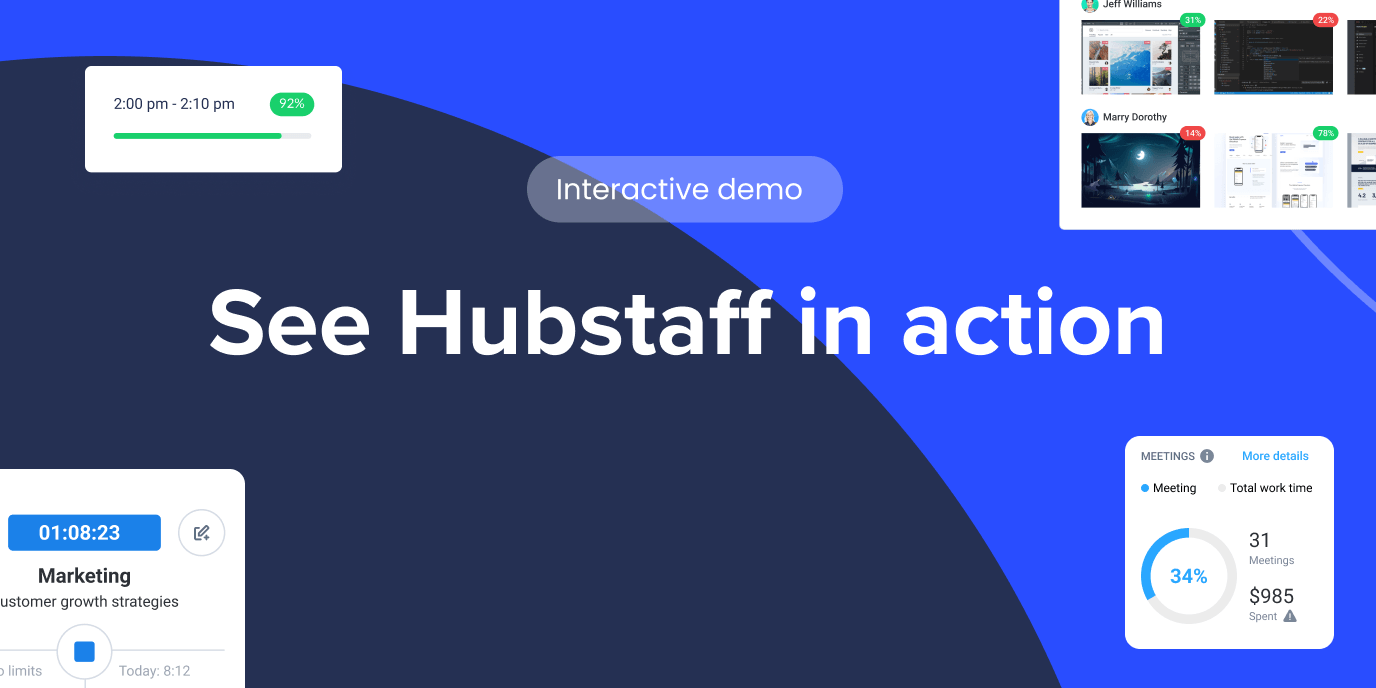
Dive into our interactive demo and explore the features that make managing global teams easier than ever.
Why we’re reviewing our own product
If you’re reading this piece, then you might be deciding between implementing Hubstaff and other tools like it.
And if you’re deciding, you’re making the right move by reading reviews. Most Hubstaff users who are successful with our tool took time reviewing and testing tools before they made a choice.
That said, if you look up Hubstaff reviews now, you’ll find that virtually none of them are written by anyone neutral. You’ll find reviews by other products like it, which exist to steer you toward their own product. The incentive is built into the format, but we don’t do that here.
Our goal is simple: to give you the same breakdown a competitor review would. But instead of sending you somewhere else at the end, we’ll lay out all the facts you need to know to decide whether you should go with Hubstaff or something else.
What is Hubstaff?
Hubstaff is a time tracking software platform with built-in productivity monitoring, workforce analytics, and automated payments.
Time gets tracked, and that data turns into timesheets, operational data, and insights. That then turns into payments, invoices, and information that supports executive decisions.
Hubstaff isn’t built for one kind of team. It serves:
- Remote teams working from anywhere, with no shared office to anchor hours to.
- In-office teams who want structured attendance and activity data without a physical time clock.
- Hybrid teams splitting time between home and office on their own schedule.
- Field-based teams who clock in from job sites instead of a desk.
From the team member’s perspective, the experience is the same whatever their work style. The timer is turned on and they focus on their work.
The tracking, the reporting, and the payment calculations happen in the background. The software adjusts to the work, not the other way around.
Who Hubstaff is built for
Not every team needs Hubstaff. Some teams need a simple time tracker and others might only need surface level productivity monitoring.
If any of the situations below sound like yours, Hubstaff is probably a good fit.
- Distributed teams that bill clients by the hour and need accurate time records to back up their invoices.
- Agencies juggling multiple clients and projects at once, where hours have to stay organized by who they belong to.
- BPOs that need to prove contractor output to the companies they’re working for, not just track it internally.
- Growing teams that need time data feeding directly into payroll, instead of someone reconciling spreadsheets by hand.
Don’t see your team up there?
Keep reading anyway. There are several businesses using Hubstaff that don’t fit the above but have found success with it. And in the following section, you’ll find out if yours can get value out of Hubstaff, too.
Hubstaff pros and cons
Hubstaff isn’t perfect. In the table below, you’ll see what Hubstaff does very well. You’ll see the things it doesn’t, too. We won’t bury anything in the fine print. Here are Hubstaff’s pros and cons:
| Pros | Cons |
|---|---|
| Workforce analytics unify time, activity, task, and financial data into one view instead of three separate tools. | Real cost climbs when you factor in add-ons like Insights, unlimited screenshots, or Locations. |
| Scheduling, attendance, PTO, and payroll connect into one smooth operational workflow. | The mobile app has fewer admin capabilities than desktop. Some tasks still need a computer. |
| Flexible deployment works across remote, hybrid, and in-office teams, on company-owned or personal devices. | Scheduling is functional but not scheduling-first. There’s no drag-and-drop, auto-scheduler, or shift-swap marketplace. |
| The dashboard is simpler to adopt and manage than most up-market workforce intelligence platforms. | Monitoring features need a deliberate rollout. |
| A developer-friendly API, CLI, MCP support, and SSO make workforce data easy to automate and extend. | Workforce analytics, the feature that gives you the most value out of activity data, sits behind the Team plan and up. |
While it may sound counterintuitive, our recommendation is to read the cons list twice.
Then ask yourself something simple: will these cons do more harm to your business than the pros do good?
If the answer is yes, then the right tool for you right now is probably something else. In that case, here’s a list of Hubstaff alternatives.
But if the answer is no, if the time and resources you save and the visibility you gain outweigh those, Hubstaff will pay for itself over time.
Hubstaff pricing: What it actually costs
If you’ve read more than one competitor review before this one, you might’ve noticed that the Hubstaff pricing conversation has been vague to varying degrees.
“Costs can add up” is a real thing, but it’s not a number. Below is a table in which you’ll see how much you’ll pay every month.
| Plan | Monthly Price (Annual) | Monthly Price | What’s included |
|---|---|---|---|
| Starter | $4.99/seat/mo | $7/seat/mo | Basic time tracking, timesheets, activity levels. |
| Grow | $7.50/seat/mo | $9/seat/mo | Everything in Starter, plus expenses and unlimited clients. |
| Team | $10/seat/mo | $12/seat/mo | Workforce analytics, scheduling, attendance, PTO, payroll, unlimited screenshots, and a free Hubstaff Insights trial. |
| Enterprise | $25/seat/mo | $25/seat/mo | Everything in Team, plus SSO, SCIM, HIPAA, SOC 2 Type II, and dedicated support. |
All paid tiers have a two-seat minimum, except Enterprise, which is billed annually only.
Workforce analytics, the feature that turns raw activity percentages into actionable data, isn’t included until Team. Below that, you get the relatively simple activity tracking and app & URL monitoring.
That goes for unlimited screenshots, too. Starter and Grow do not include unlimited screenshots, so if screenshot proof matters to your workflow, you’ll need the Team plan from the start.
If there’s one thing competitor reviews get wrong, it’s the credit card claim. You don’t need to provide one for a free trial of Hubstaff. You can get full access for 14 days with no card on file. Cancel before it ends, and you’ll owe us nothing.
If you’re coming from manual or no time tracking at all, even the two lower-tier plans will be an upgrade to your workflow. Already have some time tracking or activity monitoring? The improvements may be marginal.
But if what you need are scheduling, payroll, and analytics that can help guide operational decisions, we recommend opting for the Team or Enterprise plans if you decide Hubstaff fits your budget.
Core features, honestly assessed
Hubstaff’s value doesn’t come from any one feature, but from how it connects time, activity, task, and financial data into one place. It also integrates scheduling, attendance, PTO, and payroll into the same operational workflow.
Here’s what you can expect from Hubstaff’s core features.
Time tracking and automatic tracking
Time tracking with Hubstaff works the way you’d expect. You have the option to implement automatic or manual tracking. Either way, both configuring and using it are intuitive for managers and team members.
- Team members can easily clock in with timers on the desktop, web, or mobile apps.
- Field teams can track their location with the mobile app’s GPS capabilities. Geofenced job sites allow people to automatically clock in the second they arrive at the location.
- On company-managed devices, automatic tracking can be deployed so employees can work straight away without thinking about a timer.
Configurable monitoring works across remote, hybrid, and in-office teams, and it works whether someone’s on a company-owned device or their own.
Productivity monitoring and activity levels
Hubstaff tracks productivity through configurable signals. Managers can turn each one on or off, and employees can see their own data at any time. It measures productivity through three metrics:
- Activity levels detect (not log) keyboard and mouse input as a rough signal of engagement, not a definitive grade on output.
- Optional screenshots add visual context to tracked time. Frequency, blurring, and whether they’re on at all can be configured on a role-to-role basis.
- App and URL tracking shows which tools and sites team members used during work hours, which is useful for spotting workflow patterns.
These tools are designed to help teams establish benchmarks, not enforce a universal score that counts as “productive” for everyone.
Productivity is contextual. A designer deep in focused work will show lower input than a data-entry specialist typing all day, without doing less work.
Understanding that difference takes a deeper read on how work happens from role to role, which is why Hubstaff Insights has role-based productive and unproductive app classifications.
The real limitation—and this goes for any productivity monitoring tool, not just Hubstaff—is how monitoring gets communicated to employees before it’s rolled out.
A tool can be highly configurable, transparent, and give a lot of control to employees, but even that can only go so far. If the purpose behind the tools and what data gets tracked isn’t explained upfront, employees will naturally push back. This philosophy of transparency is one of our guiding principles.
Workforce analytics and reporting
Where activity levels tell you about individual work sessions, Hubstaff’s workforce analytics zooms out to the whole team. This layer helps managers make staffing and workload decisions, with metrics like:
- Benchmarks compare your team’s productivity trends against industry standards, surfacing peak hours, unusual activity spikes, and early signs of burnout.
- Utilization compares actual hours worked against expected time, across teams, roles, and projects, and connects that data to labor costs so you can see how time impacts spend.
- Capacity planning flags workload constraints and delivery limits before they cause a problem, using historical trends to forecast staffing needs and rebalance work.
These in-depth analytics are available on the Team and Enterprise plans. Starter and Grow give you time tracking and basic activity data, but the analytics that turn that data into forecasts and benchmarks aren’t part of those plans.
Payments and invoicing
Once hours are tracked and approved, Hubstaff turns them into invoices and payments. Set billing rates for projects or clients and have your team do the work, and Hubstaff will automatically generate invoices that you can send straight from the platform.
The same process goes for payments. Set pay rates, let your team track time, and then approve their timesheets. Hubstaff enables global contractor payments through platforms like:
- Wise
- Deel
- PayPal
- Gusto
- Payoneer
- Bitwage
With Hubstaff, invoices and payments come from a single workflow. You don’t need to switch between different tools to bill a client or send a payment, while eliminating discrepancies in either process.
Scheduling
Scheduling isn’t the reason you’d choose Hubstaff, but it gets the job done. You can build shift schedules, track attendance against them, and tie it back to the same time and payroll data.
What you won’t find here is what scheduling-first tools are built around. Hubstaff doesn’t have a drag-and-drop shift builder, an auto-scheduler that fills gaps for you, or a shift-swap marketplace where employees trade shifts among themselves.
If your team’s core problem is complex shift coverage across dozens of locations, a dedicated scheduling tool will likely serve you better.
But if scheduling is one piece of a bigger workforce picture, Hubstaff covers it well enough not to need a separate tool.
API and developer platform
For teams with developers on staff, Hubstaff doesn’t stop at the dashboard.
Public APIs let you pull time, activity, and project data into your own tools instead of relying on Hubstaff’s built-in reports. A CLI covers bulk actions and scripting for anyone who’d rather work from the terminal. MCP support connects that same data to AI tools like Claude, ChatGPT, and Gemini, so you can query workforce data directly instead of building a dashboard first.
SSO and integrations with tools like Slack, Jira, and Salesforce round it out for teams already running on a bigger stack.
Here’s the catch: you need to have someone on the team to build this. It’s a meaningful benefit for a technical team. However, getting real value out of the API and CLI layer takes developer time most small teams simply don’t have sitting around.
Where Hubstaff isn’t the right fit
Like we said early in this article, no tool fits every team. Hubstaff isn’t an exception. It isn’t the right fit for the following situations:
- Fully deskless or field-based teams that need scheduling as their core workflow. Hubstaff’s scheduling is functional, but it isn’t designed to run a dispatch operation.
- Teams that want to stay on a free plan long-term. Hubstaff’s free tier is limited to one user, so it’s a trial experience, not a permanent home for a growing team.
- Teams that aren’t ready to talk to employees about monitoring before turning it on. Rolling out activity tracking without that conversation first is how you get pushback, regardless of how configurable the software is.
If any of these describe your situation, Hubstaff probably isn’t the right call right now, and that’s fine. It’s better to know that here than after you’ve onboarded a team.
What other Hubstaff reviews get right (and leave out)
Other time tracking tools have given fair reviews of Hubstaff, praising its strengths and calling out its weaknesses—which is fair. That said, fair isn’t the same as complete, and a few of these criticisms are missing some important context.
Here are some of the most common concerns we found in other reviews, with the details that aren’t mentioned:
- “Hubstaff is complex, or costly, compared to simpler tools.” If you are looking at Hubstaff as a time tracker, we agree with this. It is complex and costly if what you need is a time tracker. What reviews frame as complexity is usually the tradeoff for connecting time, activity, task, and financial data in one place instead of buying three separate tools to do it.
- “Tiered pricing and add-ons mean the real cost climbs past the sticker price.” Hubstaff does have different tiers and paid add-ons, and we publish the full breakdown on our pricing page. We’ll admit it’s a bit of a long scroll, but you’ll see every feature that you get in each plan. For a simpler comparison of the options, check out our pricing guide.
- “Monitoring features feel intrusive.” Any tool with productivity features can feel intrusive. We made screenshots, activity tracking, and app & URL data configurable and viewable by employees at any time because of this, but our strongest recommendation would always be to communicate with employees before ever implementing tracking.
- “Support responsiveness is inconsistent.” Support is available through in-app chat and email, and response times vary by plan tier. If support speed matters to your decision, we recommend checking out our response times before you commit to a plan.
What most of these reviews leave out entirely is what happens after tracking. Payments, invoicing, and workforce analytics are where Hubstaff delivers the most value. These capabilities are the main reason teams pick Hubstaff over simple time trackers.
Is Hubstaff right for you?
By now, you’ve read enough about Hubstaff to get a good idea of the role it could play in your business. To make things easier, here’s a quick overview to help you decide:
Choose Hubstaff if:
- You need time tracking, productivity monitoring, and payments in one connected platform
- Your team is remote, hybrid, or in-office, and you need one tool that can handle all three
- You bill clients by the hour or manage contractor payments across borders
- You need workforce analytics to guide staffing and capacity decisions
- You have developer resources to get real value from the API, CLI, or MCP layer
Look elsewhere if:
- You’re fully deskless or field-based and scheduling is your core workflow
- You want to stay on a free plan long-term
- You’re not ready to talk to employees about monitoring before turning it on
- Advanced, drag-and-drop scheduling is your top priority
- You need enterprise-grade compliance (HIPAA, SOC 2, SSO) without paying for Enterprise
Of course, we’d love for you to give Hubstaff a try. But our ultimate goal with this article is to help you decide whether to go for Hubstaff or something else. If we were able to do that, we’d consider this review a success.
Now, if you feel like Hubstaff is for you and you landed mostly on the left in the table above, your next step depends on your team.
If you’re smaller and want to test Hubstaff yourself, start a free trial and see it inside your own workflow.
But if you’re a larger or more complex organization, book a demo instead and get a guided walkthrough from our team.
Hubstaff review FAQs
Is Hubstaff legit?
Yes. Hubstaff is used by over 140,000 users worldwide and maintains SOC 2 Type II compliance, along with GDPR and HIPAA support on higher tiers. It’s been reviewed publicly on G2, Capterra, and Trustpilot for years, with a track record you can check yourself before signing up.
Is Hubstaff free?
Hubstaff has a free plan, but it’s limited to a single user and isn’t practical for team monitoring. Paid plans start at Starter, and every tier comes with a 14-day free trial, no credit card required.
Does Hubstaff track what I do after I clock out?
No. Tracking only happens during active work sessions when the timer is running, not after someone clocks out. The exception is automatic tracking on company-managed devices, which is configured by the employer and disclosed upfront, not run silently in the background.
What does Hubstaff actually track?
Time, activity levels, and optionally, app and URL usage and screenshots. Every one of these is configurable by role, and none of it involves keystroke logging.
Can employees see their own Hubstaff data?
Yes. Transparent tracking means employees can view their own time, activity, and screenshot data whenever they want. That visibility is built into Hubstaff by design.
Is Hubstaff good for small teams?
It can be, depending on what the team needs. Small teams doing straightforward time tracking will find the Starter and Grow plans cover the basics well. Teams that need scheduling, payroll, or workforce analytics will need Team from the start, since those features aren’t available on the lower tiers.
Most popular
The Top Time Management Statistics in 2026 for Workplace Productivity
We all have the same hours in the day. But when employees struggle to focus, those hours likely won’t be used effectively. Witho...
The Best Coaching Conversations Start With Productivity Data
Most coaching conversations happen too late. A deadline is missed, or a client flags a problem, and then a manager schedules a sit...
A Quick Guide to Work Order Management
From quick fixes to long-term stability, work orders are crucial to asset management and helping managers keep operations running...
How to Identify High Performers Using Work Patterns
Every business has top performers, and managers are told to find them all the time. But in most cases, they default to approaches...