9 Best Remote Work Software Tools for Distributed Teams

 9 min read
- Remote teams in 2026 rarely fail from one big breakdown. Small friction points do the damage: delayed answers, buried decisions, and timesheets nobody filled out.
- A working remote stack covers five jobs: time tracking, communication, task management, documentation, and file access. Each tool should cut admin work, not create it.
- Tools like Slack, Asana, and Notion show what people are working on. Hubstaff adds time tracking, productivity monitoring, and workforce analytics, so you can also see how the work is actually going.

Managing a distributed team in 2026 rarely breaks down over one big thing. It’s the pileup of small ones: a question that waits eight hours for an answer, a decision buried in a thread, a timesheet nobody filled out.
Most teams assembled their remote work software one tool at a time, usually in a hurry. You end up with a stack that covers every function on paper and still leaves you guessing about how the work is actually going.
Here are 9 tools worth building that stack around in 2026, and what each one is actually good for.
Overview: Best remote work software in 2026
Remote workforce software helps teams collaborate, manage projects, communicate across time zones, and understand how work gets done in distributed environments. In this guide, we break down the best remote work tools for communication, project management, productivity tracking, documentation, and workforce visibility.
For most remote teams, the right stack includes:
- Hubstaff for time tracking, productivity visibility, workforce analytics, and automated payments.
- Slack, Zoom, and Loom for real-time and async communication.
- Asana, Todoist, and Notion for project management, tasks, and documentation.
- Google Drive and LastPass for file sharing and secure access.
If you manage a remote, hybrid, or distributed workforce, prioritize tools that give you visibility into work without creating more admin. Hubstaff is the best fit when you need time tracking, productivity monitoring, workforce analytics, and payroll-connected workflows in one platform.
Here’s how the nine tools compare on what they’re best at and what they cost:
| Tool | Best for | Starting price |
|---|---|---|
| Hubstaff | Time tracking and productivity visibility | $4.99 per user/month |
| Slack | Real-time team communication | $8.75 per user/month |
| Zoom | Video meetings | $16.99 per user/month |
| Loom | Async video walkthroughs | $18 per user/month |
| Asana | Project management | $10.99 per user/month |
| Todoist | Task and to-do management | $7 per user/month |
| Notion | Internal documentation | $12 per user/month |
| Google Drive | File storage and collaboration | $12 per user/month |
| LastPass | Password management | $4 per user/month |
Best remote work software by use case (2026)
1. Hubstaff – for time tracking and productivity visibility across distributed teams
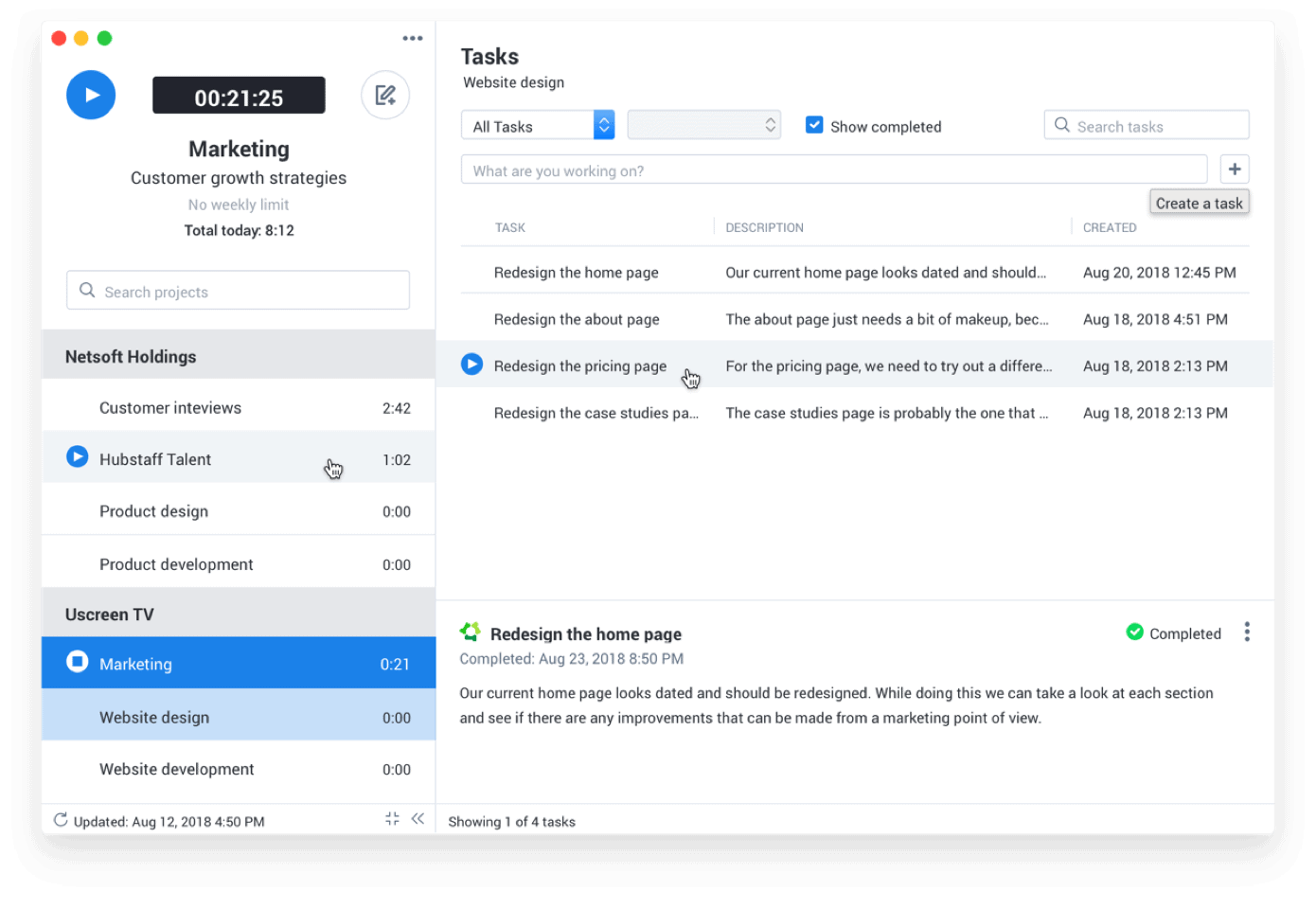
Hubstaff is a time tracking software platform that turns work hours into insights, with built-in productivity monitoring, automated payments, and workforce analytics. It’s built for global teams, whether people work remotely, in hybrid setups, or out in the field.
Tracked time becomes timesheets, payments, and reports your team can access, while workforce analytics helps managers understand work patterns and make staffing and workload decisions. Hubstaff extends this workforce intelligence through its API, CLI, and MCP server, making workforce data available for custom reporting, automated workflows, and AI-assisted analysis.
Key features
- Time tracking (core feature). Your team tracks time with one click from the desktop app (Mac, Windows, Linux), mobile apps (iOS and Android), or the Chrome extension. Tracked hours populate timesheets automatically, which cuts manual entry and payroll errors.
- Automated payments and payroll integrations (web app). Approved hours convert into payments through integrations with PayPal, Wise, Gusto, Deel, Payoneer, and more, or export to your existing payroll system for approval.
- Workforce analytics and Insights (add-on). The Insights add-on layers on trend-based workforce analytics like utilization rates, focus patterns, and unusual activity, so staffing and workload calls rest on data instead of assumptions.
- Productivity monitoring. For teams that need visibility into how work gets done, Hubstaff offers configurable productivity monitoring on desktop:
- Activity rates based on keyboard and mouse usage
- Optional app and URL tracking
- Optional screenshots (fully configurable)
- Settings are role-based, so tracking can match what each team needs
- Workforce intelligence with AI-ready data. Hubstaff’s API, CLI, and MCP server let teams use workforce data beyond standard dashboards. Build custom reports and automated workflows through the API, query data from the terminal with the CLI, or connect AI assistants through MCP to explore work patterns and answer questions about your team’s data.
- Integrations. Hubstaff connects with project management, accounting, and customer support tools your team already uses. Integrations aren’t included on Starter, Grow includes one, and Team and Enterprise include unlimited integrations.
Pricing
Annual pricing, with a two-seat minimum:
- Starter: $4.99 per user/month
- Grow: $7.50 per user/month
- Team: $10 per user/month
- Enterprise: $25 per user/month
Monthly billing starts at $7 per user/month. Every plan includes a 14-day free trial, no credit card required.
Hubstaff also offers extra add-ons that boost its primary team management features:
- Tasks ($2.50 per user/month on Starter; included on Grow, Team, and Enterprise)
- Insights ($2.50 per user/month on Starter and Grow; included on Enterprise)
- More screenshots ($2.50 per user/month)
2. Google Drive – for cloud storage and document collaboration
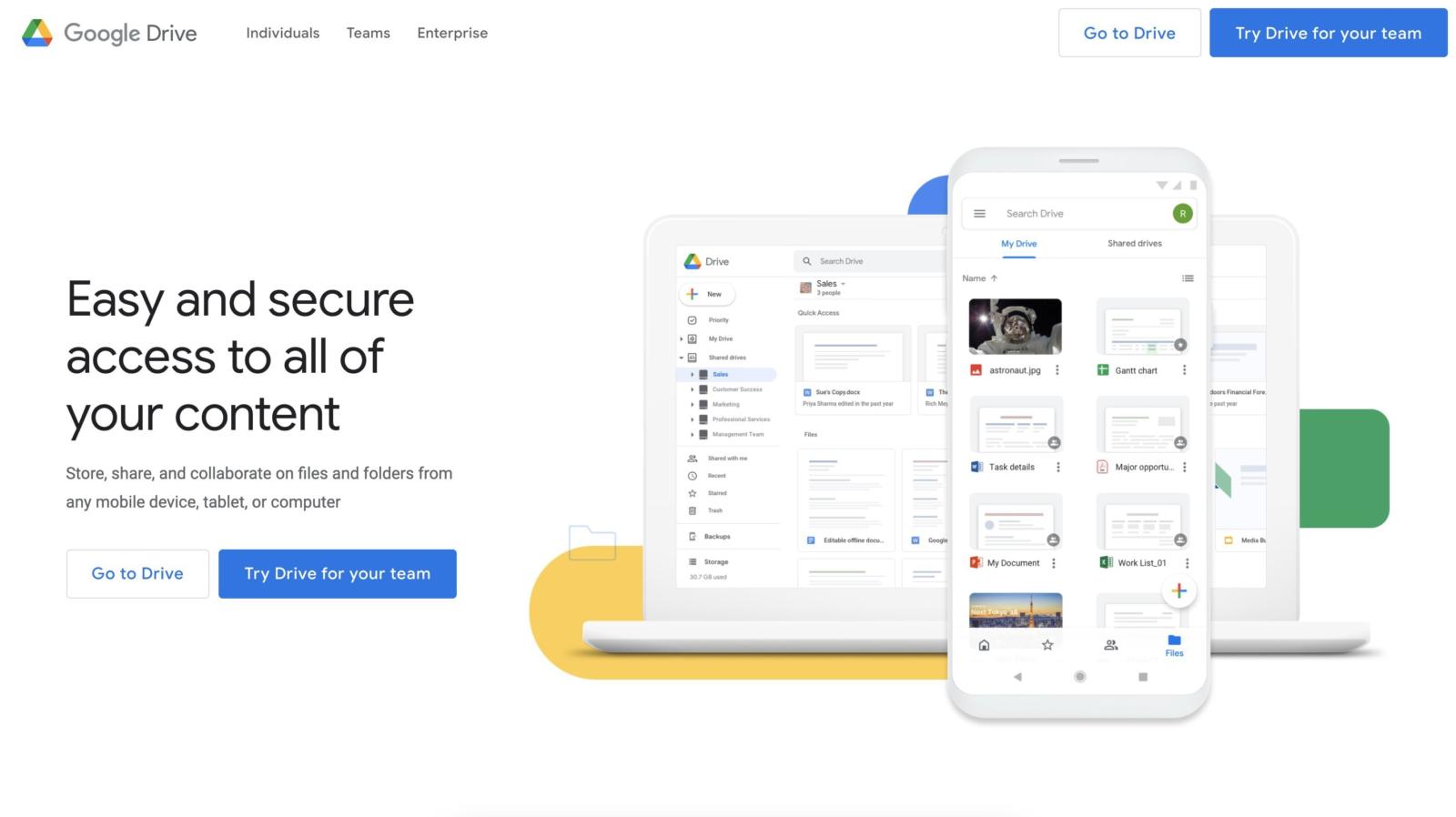
If you still keep work-related files on your local computer, you’re playing with fire. While it makes our list mainly for providing a space for remote teams to share and collaborate on their work, even in-office teams can benefit from the security safe haven that is Google Drive.
Drive is your one-stop shop for document and file sharing for remote teams of all sizes. It might not be the most flashy and exciting of the tools on our list, but it’s the backbone of the modern workforce with over 2 billion people using it.
Key features
- Cloud file storage and sharing
- Document processing
- Spreadsheets
- Remote collaboration
- Presentations
User reviews
G2: 4.4/5
Capterra: 4.8/5
Pricing
- Personal use: Free 15 GB for personal users
- Business: $12 per user/month paid annually
Google One also gives you larger storage options:
- 100 GB ($1.99/month)
- 2 TB ($9.99/month)
3. Slack – for real-time communication
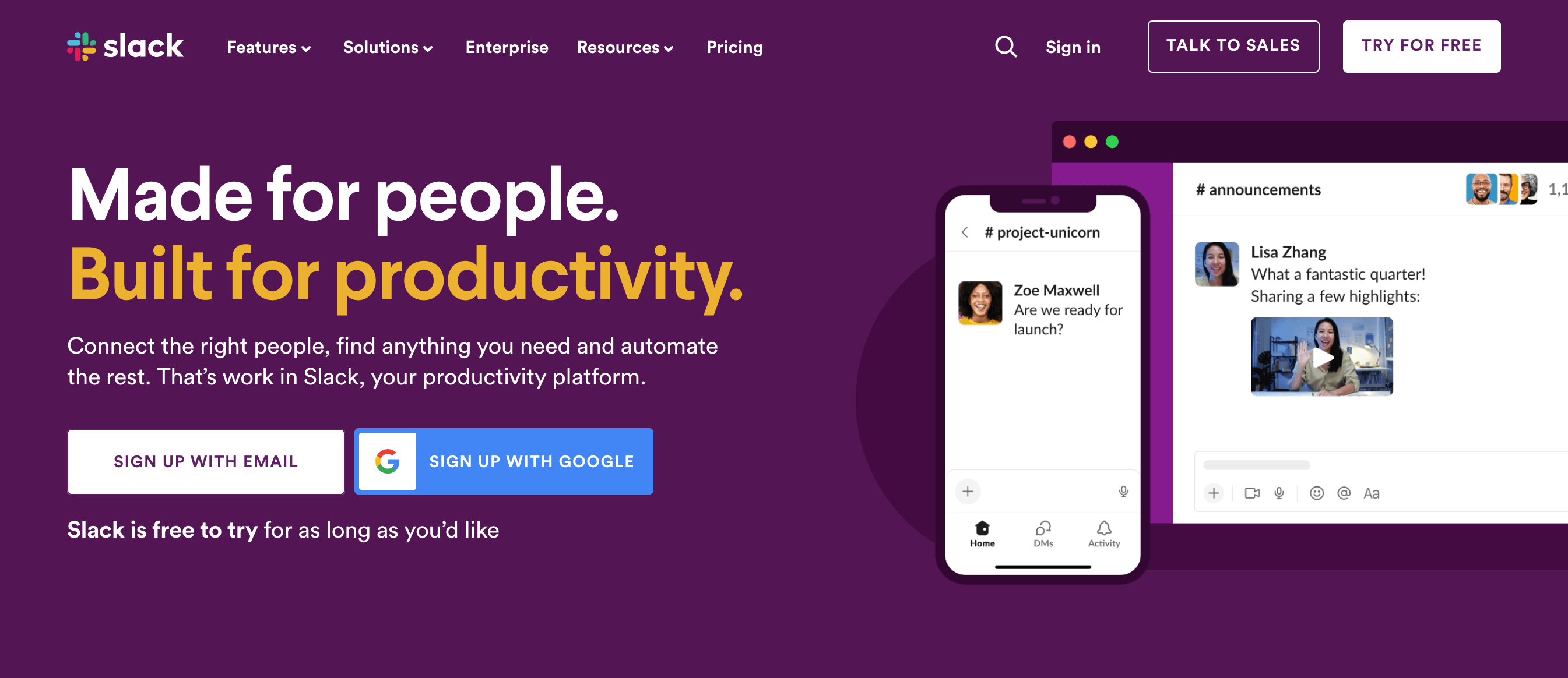
Like Google Drive, Slack is the way of the modern workforce regardless of whether you work remotely, in-office, or hybrid. This modern communication savior leaves email in its dust with an intuitive interface and helpful features for remote teams of all sizes.
Key features
- Channels
- Direct messaging
- Huddles (audio and video calls)
- Message search
- File sharing
- Integrations with your favorite tools
Pricing
- Pro: $8.75 per user/month. Unlimited message history, integrations, workflows, group audio and video meetings, and messaging with users outside of your organization.
- Business+: $18 per user/month. Everything in Pro plus advanced AI, SAML-based single sign-on, SCIM user management, and native data loss prevention.
- Enterprise+: Slack’s enterprise plan with unlimited workspaces, enterprise-grade AI, enterprise search, and more. Contact sales for more information.
4. Todoist – for tracking to-dos

The big knock on remote work is that remote workers lack the discipline to avoid life’s distractions when working from home or on the go. I hate to admit it, but it’s sometimes true.
Fortunately, tools like Todoist ensure you complete everything on your to-do list before you indulge in the pleasures of remote work. Recurring due dates, reminders, and even a priority system help you plan and execute on your to-dos with relative ease.
Key features
- To-do lists
- Recurring due dates
- Reminders
- Priorities and labeling
- Subtasks
- 80+ integrations
Pricing
- Beginner: Free for productivity novices. Includes 5 personal projects, flexible list and board layouts, 3 filter views, and a one-week activity history.
- Pro: $7 per user/month for 300 personal projects, calendar layout, 150 filter views, and more.
- Business: $10 per user/month up to 500 team projects, team calendars, and more.
5. Loom – for recording video walkthroughs
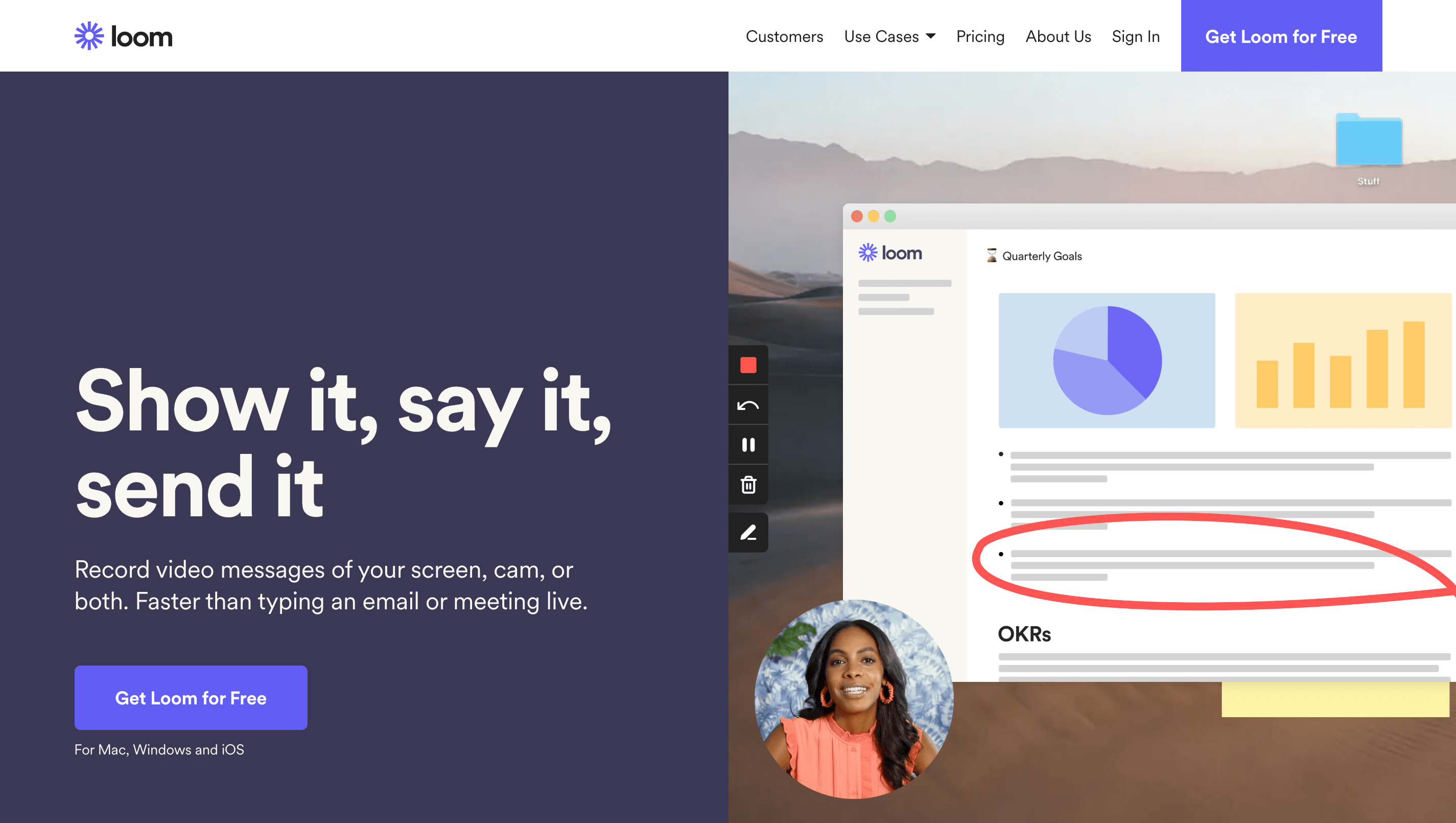
The true power of remote work lies in its asynchronous potential. Loom embodies what it means to work remotely with AI-powered messaging that helps teams work across multiple time zones.
With Loom, you’ll never need to worry about uniting your global team for every call or onboarding team members located overseas. You can use it to record your computer screen to create tutorials, intros for new hires, project updates, and more with relative ease. It’s available for desktop, Chrome, and iOS, so you can make videos anytime and anywhere.
Key features
- Screen and webcam recording
- Video drawing tool
- Calls-to-action
- Custom branding
- Reports
Pricing
- Starter: Free. Up to 25 videos per person at five minutes apiece.
- Business: $18 per user/month for unlimited videos and recording length, basic editing, and custom branding.
- Business + AI: $24 per user/month for everything in Business plus auto-video enhancement, advanced editing, and automated meeting notes and recaps.
- Enterprise: Unlimited videos and recording length, advanced security, Salesforce integration, and more. Contact sales for custom plans.
6. Asana – for efficient project management
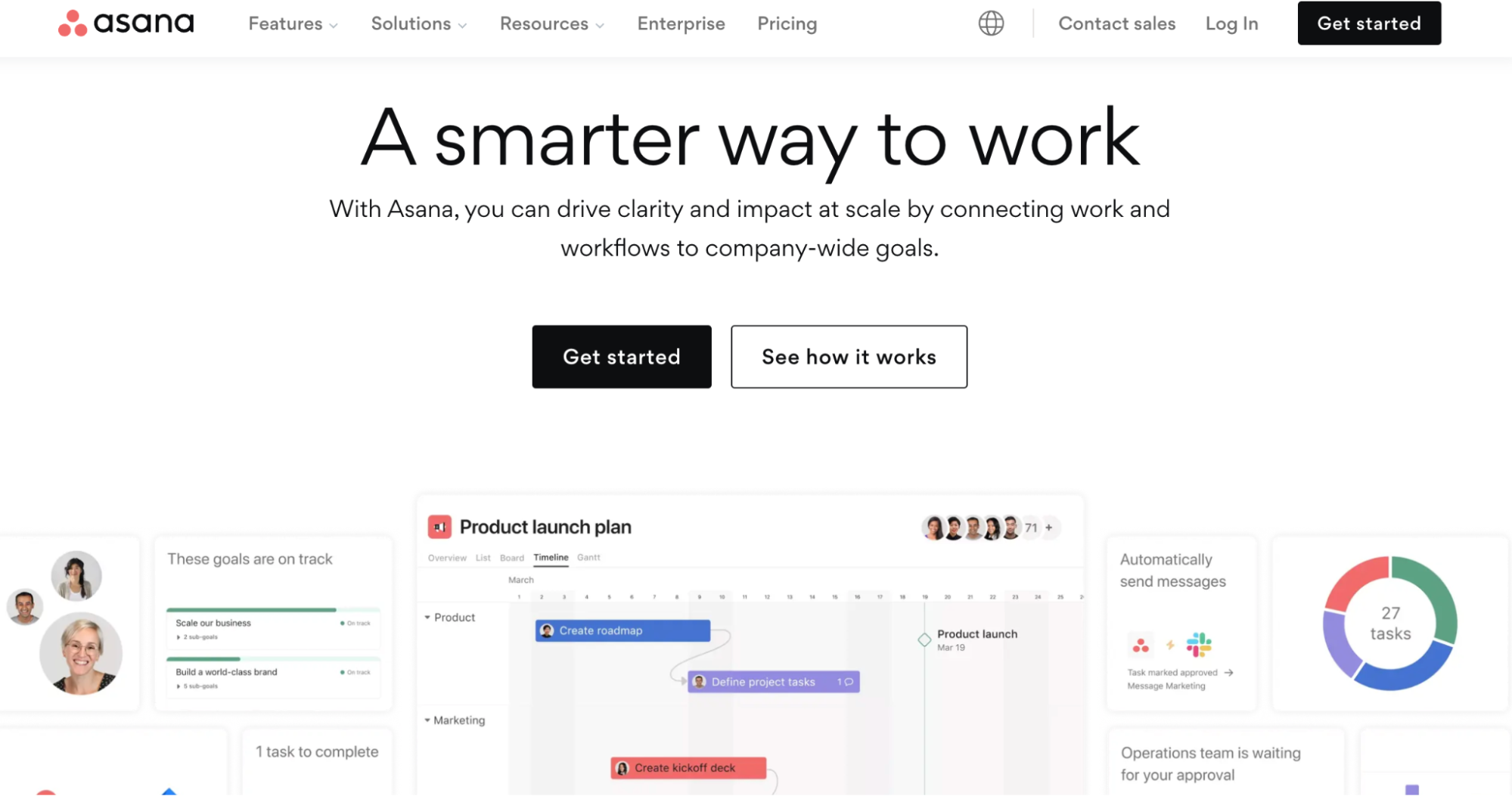
Asana would be much higher on our list, but it felt like cheating to put a great all-around project management tool so high on a list of remote work software. It is true though: Asana is one of the best project management tools on the market for remote, hybrid, or in-office teams.
You can create projects, shift seamlessly between popular project management views, and create rules to automate workflows and keep your team on task — no matter where they are in the world.
Key features
- Project and task management. Create tasks, assign your team, and start building workflows. You can also break tasks into subtasks and create rules to automate how work moves across each step of the process.
- Project views. Unlike most project management tools, Asana really can help you shift seamlessly across popular project management views. Whether you’re a Gantt chart, Kanban, Calendar fan, or all of the above, Asana helps you switch gears seamlessly and allows teams to visualize their work any way they like without it impacting their teammates.
- Integrations. Asana works seamlessly with dozens of tools like Google Drive, Slack, Dropbox, and even Hubstaff.
Pricing
- Personal: Free for up to 2 users
- Starter: $10.99 per user/month (billed annually)
- Advanced: $24.99 per user/month (billed annually)
- Enterprise: Contact Asana for pricing
7. LastPass – for better password management

LogMeIn’s password manager LastPass has long been a go-to tool for growing teams. With remote work, password encryption becomes increasingly crucial.
LastPass’ password vault approach helps you cut down on password resets for your entire team without risking security breaches from sending passwords over Slack, email, or other communication channels.
Key features
- Password storage
- Password sharing
- Multifactor authentication
- SSO (for Business plan only)
Pricing
- Business: $7 per user/month for unlimited users, 3 SSO apps (with MFA), 100+ customizable policies, and more.
8. Notion – for internal documentation
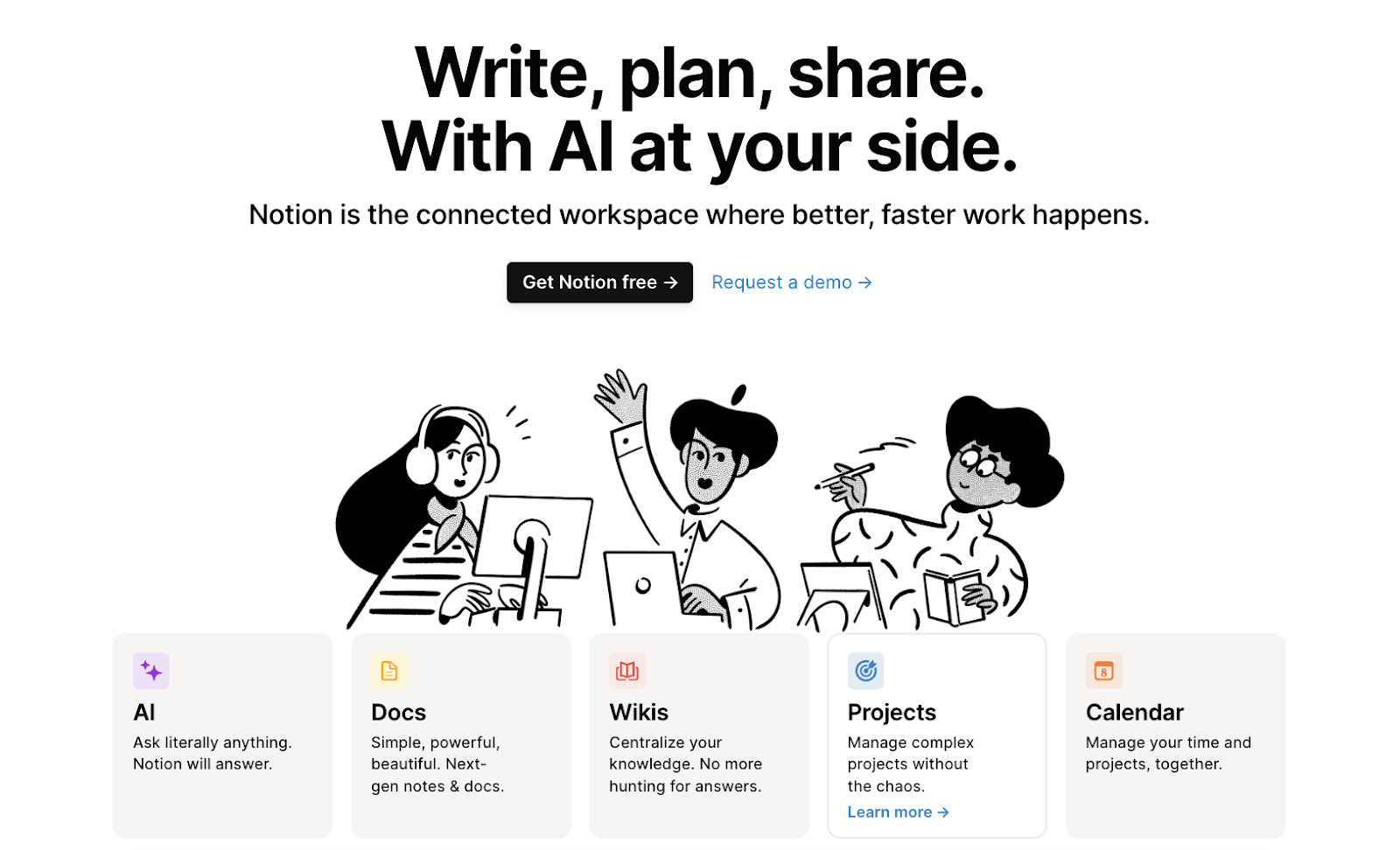
For remote teams, we don’t always have the luxury of company-wide town halls, meetings, or formal training sessions. Fortunately, we have Notion to help us document processes asynchronously so we don’t have to coordinate across time zones and departments to unveil new policies.
Key features
- Wikis: Notion is probably best known for being your one-stop knowledge hub. You can keep process documentation, onboarding checklists, and anything else you need in one centralized place to ensure employees have access no matter who is online.
- Notion AI: Think ChatGPT but built right into your company’s knowledge base. Not a bad added perk for remote employees who often work different hours than their managers.
- Projects: Manage your projects right from Notion so you never have to leave your knowledge base. Calendars round out a tool that’s becoming increasingly project management-driven.
Pricing:
- Free
- Plus: $12 per user/month
- Business: $24 per user/month
- Enterprise: Contact Notion for custom pricing
9. Zoom – for video calls

Last but not least, a familiar name in remote work software is Zoom. Zoom has made considerable strides to outgrow its basic video conferencing features. With Zoom Workplace, you can improve productivity and engagement for your remote team with AI-driven technology.
Key features
- Meetings
- Team chat
- Phone
- Workvivo employee engagement
- Surveys
- Docs
- Scheduling
Pricing
- Basic: Free platform for basic meeting needs. Offers 40-minute meetings with up to 100 attendees per meeting.
- Pro: $16.99 per user/month. Everything in Basic plus 30-hour meetings, Zoom Mail and Calendar, unlimited AI note-taking, 10 GB cloud storage, and more.
- Business: $21.99 per user/month. Everything in Pro plus 300 participants, unlimited whiteboards, unlimited booking pages, SSO, and device management.
- Enterprise: 1,000 participants per meeting, unlimited cloud recording, Rooms, and webinars. Contact Zoom for pricing information.
Next steps for remote work software
Have any of the tools listed piqued your interest? Here’s what you need to do next:
- Identify challenging activities: Consider which remote activities are currently tricky or time-consuming. Is it project management, communication, or something else? Use remote work software to make these activities easier.
- Start free trials: Most of the remote workforce software on our list offers a free trial. Use these trials to see if a particular tool is the right fit for you.
- Implement valuable tools into your workflow: Once you see which tools work for you, implement them into your workflow and make it easier for yourself or your team to work remotely.
Interested in more content on remote work? Check out these posts:
Most popular
A Quick Guide to Work Order Management
From quick fixes to long-term stability, work orders are crucial to asset management and helping managers keep operations running...
How to Identify High Performers Using Work Patterns
Every business has top performers, and managers are told to find them all the time. But in most cases, they default to approaches...
The AI Productivity Panel: Lessons From Leaders on What’s Working (and What’s Not)
When I moderated this AI productivity panel, I expected a solid conversation. What I didn’t expect was the flood of real-world i...
Ask Your Workforce Data Anything with Hubstaff’s New AI-Ready CLI and API
It’s Monday morning. Your CEO asks, “Which projects went over budget?” Instead of pulling reports, exporting numbers, and ve...