Productivity monitoring with privacy
guide

How to Configure Productivity Monitoring With Employee Privacy in Mind (Settings & Permissions Guide)

Every productivity monitoring conversation has two halves.

The first is the non-technical part or the “why” behind it. It’s the stage where you ask questions like:

  • Why are you doing this?
  • What are you trying to achieve?
  • Are the people you're monitoring on board?

The second half is about developing a policy, inviting feedback, and implementing productivity monitoring software with employee privacy in mind. 

This guide is about that second half. By the end, you'll have a clear framework for setting up productivity monitoring in Hubstaff in a way that gives your organization visibility without sacrificing trust.

What "privacy-friendly" monitoring means in practice

Productivity monitoring shouldn’t be a black-and-white, on-or-off, yes-or-no process. It's a concept that sits somewhere on a spectrum, and depending on how you configure your monitoring tools, that will determine where your approach falls on said spectrum.

That also means the level of monitoring you choose can impact what kind of experience your employees will have. Before you touch any settings, you need to understand the different layers of monitoring:

  • Productivity monitoring: Clear visibility into work activity, built for transparency.

  • Employee activity tracking: Track activity levels to understand work patterns based on the frequency of keyboard and mouse usage.

  • Time tracking with screenshots: Add screenshots to tracked time for context.

  • Idle time tracking: Identify idle time and understand productivity gaps.

  • App and URL usage: See which apps and websites teams use during work hours.

Tools like Hubstaff provide flexibility by allowing you to enable, disable, blur, and adjust the frequency of these features. With Hubstaff, the power is in the hands of the end user to decide what gets collected and who can see it. Every privacy consideration in this guide will come back to those two things.

Privacy-friendly monitoring gets used pretty loosely at times, so it’s up to you to be precise about what it really means.

It probably doesn't mean zero monitoring, but it does mean appropriate monitoring. That means data collection that matches the purpose you defined, the policies you have in place, and the feedback you receive.

Understanding legal and compliance baselines before you configure anything

Before you configure anything, you need a policy in place.

The tool has no way of knowing what you agreed to with your team, and it's going to collect whatever you tell it to. That puts the onus on you to make decisions that adhere to regional legislature, the standards of your industry, and the needs of your team. 

So if you haven't defined the boundaries beforehand, you are not configuring a policy; you're inventing one in real time. In that case, it’s likely happening without your employees’ input — and that can hurt you in the long run

If you don't have one yet, we recommend starting with our remote work policy template.

When a policy exists, your configuration variables will depend on the way your workforce is composed. The legal and practical considerations are not the same across team types, so you’ll want to do some research of your own, too.

Average hours (1).png
  • Remote vs. in-office. Remote employees introduce more monitoring surface area by default due to more ambiguity around availability and more variation in the environment. How you track and compare performance across locations should be defined before you configure anything, not discovered after rollout.

  • Employees vs. contractors. These classifications are not interchangeable from a legal or ethical standpoint. There are clear distinctions between the two. What you can monitor, what you're required to disclose, and what constitutes appropriate oversight can differ significantly depending on the working relationship and employment region.

  • U.S. state-specific consent laws. States like California, Connecticut, and Delaware each have their own requirements around employee monitoring and consent. California, in particular, has detailed labor protections you should review before configuring any data collection for employees in that state.

  • EU/UK considerations. If any part of your workforce is based in the EU or UK, GDPR and works council requirements create a higher bar for transparency and employee rights around personal data. Workplace privacy regulations in these regions are baseline requirements, not optional considerations. Hubstaff's compliance and data governance framework is built with these in mind.

Legal disclaimer: Hubstaff takes legal compliance seriously. However, we strongly advise businesses to seek legal counsel regarding their planned use of our services, as laws differ drastically by region, employment type, and other factors. We also recommend disclosing when and how you are using Hubstaff to any employees or contractors before enabling tracking. This helps ensure transparency, can simplify compliance, and gives everyone a chance to fully understand what the software does.

The four configuration decisions

With flexible productivity monitoring tools like Hubstaff, the possibilities can be overwhelming. That said, most configurations in a productivity monitoring tool come down to four decisions.

Keep in mind that each of these decisions should be expressions of the policy you have already defined, and the tool is just the mechanism through which you implement and interact with said policy.

With that in mind, let’s walk through each one of these decisions using Hubstaff as the example.

Decision 1: Screenshots

Screenshots are the most visible part of any monitoring configuration, which is why the decision attached to this feature can often carry the most emotional weight for employees. Here’s another way of putting it: 

Screenshots can have consequences beyond the data they provide.

That’s why Hubstaff puts control in the hands of the end user to allow you to: 

  • Adjust screenshot frequency. Hubstaff can be configured to capture up to three screenshots per ten-minute period while time is being tracked.

  • Blur screenshot capture. Blur captures for increased privacy or to accommodate high-compliance roles, so only the data you need is visible.

  • Disable screenshots altogether. For certain roles, projects, or even across your organization, you can disable screenshots at any time.
screenshot-blur-1.png

The right configuration for a client-billing team is likely not the right configuration for a salaried product team working on internal tools. That’s why we’ve designed customizable screenshot tracking so you can manage teams based on your management style or compliance needs. 

But before you implement any kind of screenshot tracking, you have to ask yourself if the data they produce is really necessary, given what else you are already collecting.

Screenshots add genuine value when there is a legitimate audit requirement, like:

  • Client disputes
  • Compliance in regulated industries
  • Proof of activity for contractors

But when output is already measurable through other means (or when those monitored have no history of performance issues), it’s easy for this feature to harm trust. 

Privacy-first monitoring doesn't mean avoiding screenshots entirely — but it also doesn’t mean you need them at all. You can use the matrix below as a starting point:

Team TypeSuggested SettingRationale

Client-billing teams

On, low frequency

Creates an audit trail for billing disputes without constant capture

Salaried knowledge workers

Off or optional

Output is measurable through other means; screenshots add friction without insight

Contractors (project-based)

Per-project, opt-in

Scoped to the deliverable, not the person

Decision 2: Activity levels and what the percentage measures

The mechanics behind Hubstaff activity levels are fairly straightforward, but activity scores are one of the most commonly misread numbers in the tool, and misreading them can damage employee trust.

Hubstaff’s activity tracking measures keyboard and mouse input as a percentage of total tracked time. For every second the timer is running, Hubstaff checks if there is (or is not) keyboard or mouse activity. While a common misconception, Hubstaff does not log keystrokes.

Activity levels are a helpful barometer for productivity, but they context is crucial.  

As an example: If you use your keyboard for 30 seconds and then watch a training video for the remaining nine and a half minutes, your activity score for that interval will be really low (around 5%). 

A high activity score does not automatically mean high productivity. Conversely, a low score does not always mean someone isn’t working.

The Hubstaff score reflects input patterns, not output quality, and the right way to use it is as an anomaly signal, or a way of noticing when something has changed from a person's existing baseline.

It should never be a way to rank people against each other. This is why, at Hubstaff, we actively discourage quotas or scoring based on activity rates.

That said, like screenshots, you can adjust activity thresholds based on projects, tasks, job roles, activity benchmarks, and other variables. Here is how to set this up in the Hubstaff app:

  1. Navigate to Settings > Work and Activity to configure activity tracking at the organization level.

  2. Set the idle timeout threshold. By default, 20 minutes without input triggers an idle status. Adjust this based on the nature of your team's work.

  3. Use Activity Benchmarks (under Activity > Screenshots) to understand your organization's average before drawing conclusions from individual scores.

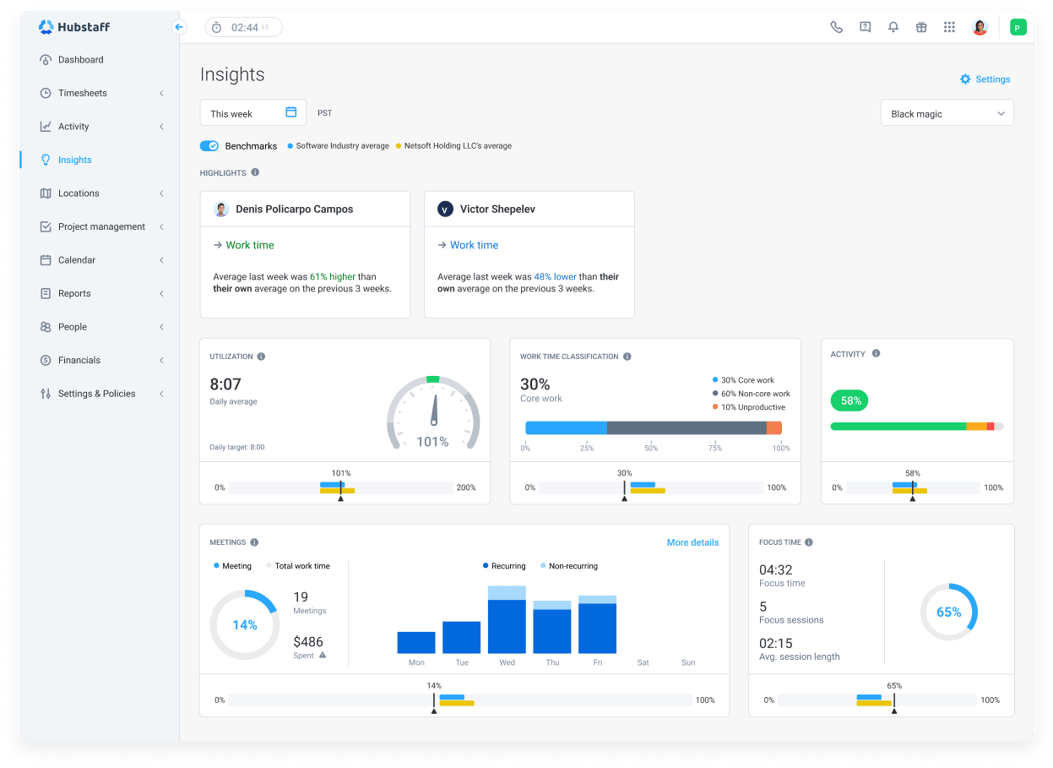
  4. Use Insights to track trends over time rather than reading activity levels as point-in-time snapshots.
insights-2.png

Decision 3: Granular permissions (who sees what)

The principle behind this is simple: data access should match decision-making authority. For instance, a team lead who manages three people does not need the same visibility as an HR director.

If everyone has manager-level access, no one does. Hubstaff's role-based permissions are built around this idea. In Hubstaff, there are six roles:

  • Owner. Full control over the organization, including settings, billing, users, projects, and reports. One per organization. Reserve this for a business owner or IT admin.

  • Manager. Can manage users, assign roles, oversee projects, and view reports. Cannot access billing or organization-level settings. Best for team leaders who need people and project oversight.

  • Project Manager. Full control over assigned projects only. No access to organization-wide settings, other users, or billing.

  • Team Lead. Can manage their assigned team, approve or edit timesheets, and handle team-specific invoices. No access outside their team.

  • User. Can track their own time, view their personal dashboard, and access assigned projects. Cannot manage users or view anyone else's data.

  • Project Viewer. Read-only access to assigned projects. Cannot make changes or track time.

Here is how you can configure access in Hubstaff:

  1. Go to the Hubstaff web app and navigate to Members or Teams in the sidebar.

  2. Locate the user whose role you want to assign or change.

  3. Select the appropriate role from the list and, for project-specific roles, specify which projects they should have access to.

  4. For Team Leads, assign them to the appropriate team within the Teams feature.

  5. Confirm and save. Updated permissions apply immediately.

We recommend starting with restriction. Start with the minimum access each role requires, because you can easily open up by exception.

Decision 4: App and URL tracking (productive vs. unproductive classification)
2-apps-and-urls-reports-goal-tracker-1.png

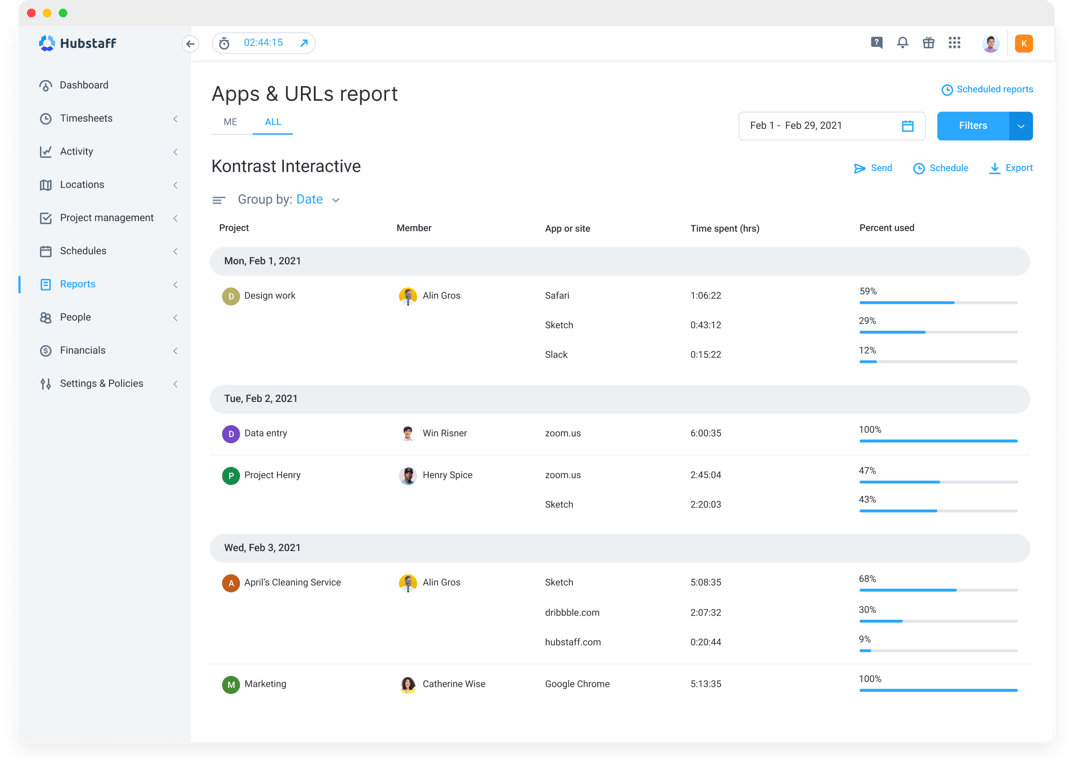
App and URL tracking logs the applications and websites your team uses, while time is tracked. This gives you context for the hours, so you can look at the quality of hours vs. quantity. 

Here is how Hubstaff's app categorization works:

  • The desktop app automatically logs active apps and websites during tracked time.

  • Insights extends this further, letting you benchmark usage trends, spot unusual patterns, track AI usage across your team, and classify apps as productive, neutral, or unproductive. 

  • Team members can see their own app and URL data at any time, which keeps the feature grounded in transparency rather than surveillance.

The default classifications are a starting point, and for many knowledge workers, they may be incorrect.

As an example: Role-based classifications are important, as a sales role will look unproductive against a classification system built for developers and engineers. 

Before you draw any conclusions from the data, review the default categories and adjust them to mirror how your teams actually work.

There is also a case for turning this feature off entirely if your team regularly handles sensitive client data, like:

  • Legal documents
  • Medical records
  • Bank statements
  • Financial records

In cases like these, the compliance risk of collecting that data may outweigh the productivity insight it provides. Stay abreast of laws that pertain to your team’s region, industry, and employment classifications.

Building your monitoring policy around your configuration

Your configuration and your policy need to match.

The most common compliance risk in productivity monitoring the data tools collect is misaligned with what a company said it would track.

Here are a few reasons this matters:

  • Employees make decisions based on what they were told. If the policy says screenshots are optional, and the tool has them enabled by default, you are already putting their trust at risk.

  • Audits compare documentation to practice. A well-written policy that doesn't match your configuration can be a liability.

  • Misalignment compounds. When settings get changed, teams grow, or roles shift. In these instances, updating the policy is sometimes treated as an afterthought, but it can lead to issues in data accuracy and compliance if left unchecked. 

If your team operates on company-owned devices, this alignment may be easier to manage because tracking policies can be configured centrally before an employee ever interacts with a company device.

Rolling out device monitoring this way (especially in regulated industries) reduces the risk of inconsistent configurations across individual machines and removes the burden of setup from employees entirely.

How to communicate the policy to your team before enabling tracking

The configuration is the easy part. The conversation you have with your employees about it can often be a more impactful indicator of whether the rollout will succeed or fail. Before enabling any tracking, your team should know:

  • What will be collected
  • When the collection happens
  • How that data will be used

There needs to be an explicit conversation around this, not fine print buried in a document.

Employees who understand the tool are less likely to experience it as surveillance. When it comes to getting employee buy-in, it helps to walk your team through the product directly: show them what the dashboards look like, show them what they can see about their own data, and demonstrate what you, as a manager, can and cannot access.

Measuring whether your configuration is working

A monitoring configuration is working when three things are true: 

  • Trust is maintained
  • Visibility is achieved
  • Legal exposure is limited

Do not compromise one for another. If you optimize one at the expense of the others, your configuration will ultimately fail. The signals you need to look out for are not always obvious, but they are readable with the right tool and if you know what to look for.

The clearest way to read them is through Insights, which goes beyond basic activity data to give you a real picture of how your team is working. Here is what you'll be able to access with Hubstaff Insights:

  • Utilization rates. Compare hours worked to daily and weekly targets and industry benchmarks for better capacity planning, so you can see who is underutilized and who is at risk of burnout before either becomes a problem.

  • Focus time. Measures time spent on core work against time spent in meetings and low-value output. If this ratio is moving in the wrong direction, it can signify a workflow problem.

  • Activity benchmarks. Set benchmarks based on industry or job role using data from other Hubstaff users, so you are comparing people against something meaningful rather than an arbitrary threshold.

  • App and URL classification. Identify time spent on unproductive apps and URLs as a percentage of total hours, customized by role, so the classification reflects how each team works.

  • Unusual activity detection. Spot anomalies in keyboard and mouse movement that may indicate activity-falsifying behavior, which is itself a signal that your monitoring configuration may be creating the wrong incentives.

  • Opt-out and deletion requests. A pattern of employees deleting screenshots or requesting data removal is an early warning of trust breakdown that no dashboard will flag for you. This is included in Hubstaff’s standard version.

We recommend a 30/60/90-day review cadence after initial configuration.

At 30 days, you are looking for obvious misalignments between what you configured and what the data is showing. At 60, you are looking at trends. At 90, you have enough of a baseline to make meaningful adjustments.

If, at any point, the data is generating more questions than it is answering, that is a good sign to dial something back.

Common configuration mistakes

If you have problems with the configuration, that’s okay. Below are common mistakes in configuring a productivity monitoring tool. A lot of the work goes into recognizing them.

  • Enabling all features at default settings without reviewing what each captures. Default settings are a starting point built for nobody in particular. Before your team tracks anything, go through each feature and confirm that what it collects matches what your policy says you will collect.

  • Using activity levels as a KPI rather than an anomaly detector. Ranking people by activity percentage or setting minimum thresholds creates the wrong incentives and produces data you cannot meaningfully act on. Use it to notice change over time, not to evaluate performance at a point in time.

  • Giving all managers full data access regardless of team size or role. Access should reflect decision-making authority. Granting someone more visibility than they need can create a privacy risk.

  • Rolling out monitoring without a written policy in place. If your policy does not exist before you implement a productivity tracking tool, the tool becomes the policy. This will put you in a poor position if trust breaks down or compliance questions arise.

  • Taking a set-it-and-forget-it approach to tracking settings. What made sense at launch may not make sense a few months after the rollout. Build a review cadence into your process from the beginning rather than treating the initial configuration as permanent. Employee and managerial feedback is crucial for sustained success

Configuration is not a one-time decision. It is an ongoing expression of what your organization values and what it has agreed to. You do not need a highly sophisticated setup to get this right — you simply need to stay honest about what you are collecting and think about whether it still matches why you are collecting it.

Configure with care

You now have a configuration framework. What you do with it depends on the conversation with your team that preceded it.

If you had an honest conversation, the settings you choose will feel like a natural extension of what your team agreed to. On the other hand, if the conversation was unclear, if information was withheld, or if employees do not fully understand the tracking policy you are putting in place, no configuration is going to fix that. Start there, and then come back to the tool.

If you want to see how Hubstaff's permission settings support privacy-focused tracking policies, sign up for a 14-day free trial.

Practice privacy-first monitoring with Hubstaff

Start a free, 14-day trial to see how Hubstaff's productivity monitoring features can streamline operations for your team.

Start my free trial