Insightful Review: Is It Worth It for Your Team in 2026?

 10 min read
- Hubstaff connects time tracking directly to invoicing, budgets, and payroll — making it the stronger choice for teams that need workforce data to drive real financial and operational outcomes.
- Productivity scores based solely on screen activity can misrepresent high performers; roles involving calls, meetings, or analysis need tracking tools that capture the full picture of work.
- Insightful suits desk-bound, computer-heavy teams in regulated industries, but scales quickly in cost when adding screen recording or security features — making tool fit critical before committing.

Businesses track work because they want their teams’ productivity to improve.
However, improving something means you need to have an end goal in mind. And in order to know that, you need to understand where you are right now.
When everyone’s in the same room, that may not be very difficult. But when your team isn’t, it is. How do you gauge effort and output across a distributed or hybrid workforce when you can’t see any of it firsthand?
The answer is workforce analytics software, and one of the most popular options right now is Insightful.
In this Insightful review, we’ll look at what it delivers, what it costs, and what real users say about it, including the concerns showing up on forums, Reddit, and review sites.
Stay in the loop
Subscribe to our blog for the latest remote work insights and productivity tips.
What is Insightful?
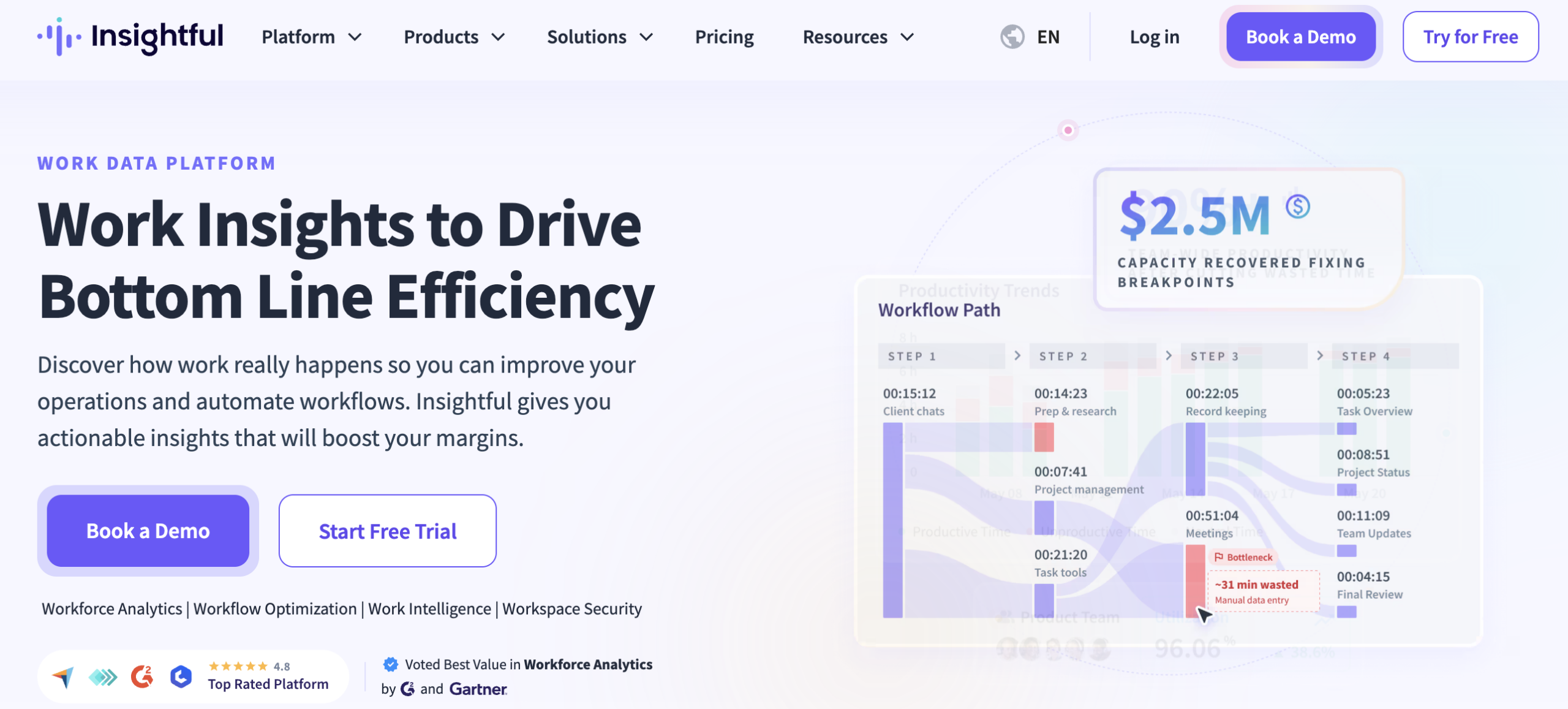
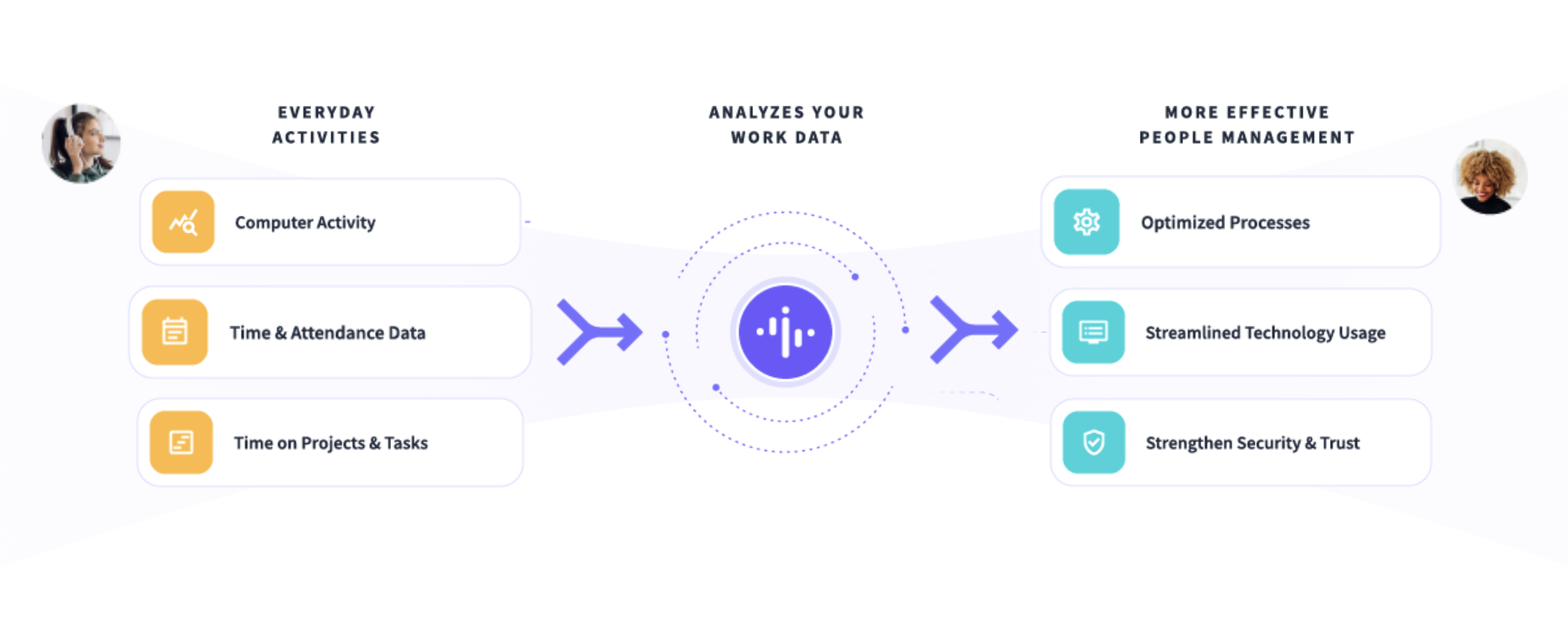
Insightful is an activity monitoring and workforce analytics platform. It tracks computer usage automatically, turns that into dashboards, and positions itself as an information source from which leaders can make decisions.
Formerly known as Workpuls, Insightful now leans into work intelligence and farther from employee monitoring. It gives employees access to their own dashboard, but it can also run in full Stealth mode (i.e., no dashboard or visible agent). In other words, the transparency conversation will depend on how you configure it.
If you’ve got field team members or a mobile-first team, Insightful is desktop and laptop only.
Insightful features: What you actually get
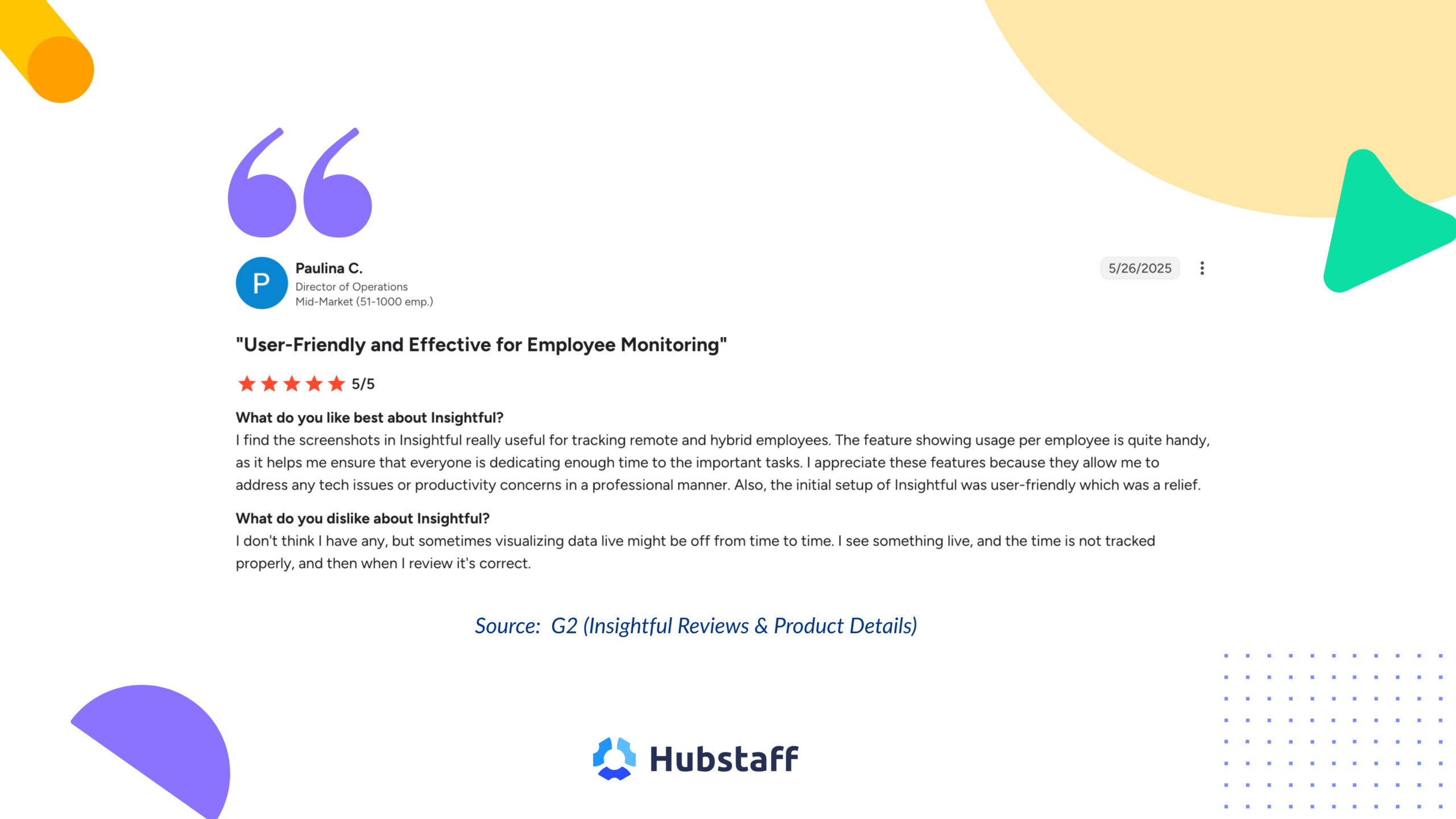
Insightful runs on activity data. Every feature is built on one core idea: track what’s happening on a screen, then turn it into something a manager can act on. Here’s what that looks like in practice.
Time tracking and productivity analytics
Insightful tracks computer activity automatically, with no manual timesheets required. Managers get a live view of how time breaks down across apps, websites, and projects.
Feedback on this is mixed, albeit in a useful way. Some managers say the data confirms what they already suspected, while others find patterns they missed entirely.
“[Insightful] gives me confirmation on things I thought to be true and see the numbers and productivity. It confirmed data that shows things I did not know and helps me focus on areas of opportunity for staff productivity.“
– Capterra review from Oscar E., Operations Manager, Financial Services
Scoring on Insightful runs on screen activity, which means roles with heavy off-screen work, like client calls or analysis, may show lower scores than the equivalent of their real output. Manual time entry and employee-controlled timers are both available in Visible mode.
Workforce analytics and reporting
In addition to activity logs, Insightful can reveal workforce analytics trends over time, such as:
- Where utilization is dropping
- Which team members are overloaded
- How productivity changes over time across teams
This decision-supporting layer is what places Insightful on a different level from most time tracking or employee monitoring tools.
“[Insightful] has given us clear, data-driven visibility into productivity and utilization during scheduled hours, which was something we were previously missing. The platform helps remove subjectivity from performance discussions and replaces it with concrete, actionable insights.”
– Capterra review from Rosserbert S., Manager, Entertainment
That said, workforce analytics data depends on how productivity categories are labeled in order to be effective. If this isn’t done right, it can easily misrepresent how people are handling their workloads.
Automatic time mapping
Insightful can automatically attribute time to calls, tickets, and tasks using workflow activity, app and URL patterns, and configurable rules.
Employees don’t have to manually switch between tasks inside their timers. This feature goes beyond simple app-to-project inference, and it can detect task transitions and activity across connected systems.
Accuracy depends on how structured the workflow is and which systems are connected. For billing or payroll, the output should be validated before treating it as the source of truth. This feature isn’t available during the 7-day trial, and it doesn’t run in Stealth mode.
“[Insightful] offers strong time-tracking, reporting, and productivity analytics capabilities that support informed decision-making and operational efficiency. The platform is most effective when paired with clear communication and a focus on using data to improve processes and outcomes.”
– Capterra review from Agwu O., CFO, Oil & Energy
AI adoption tracking
The AI Adoption Report shows which AI tools teams are using, how that adoption evolves over time, and which teams are ahead or falling behind.
Currently, this feature is included on every plan at no extra cost. It pulls this from data the desktop agent already collects without requiring new integrations.
Detection covers general-purpose tools like ChatGPT, Claude, and Gemini, plus embedded ones like Salesforce Einstein or NotionAI. Admins can customize the list if something’s missing.
Insightful also has a broader AI layer called InsightsAI, which lets you ask questions about your workforce data in plain language. That feature’s currently in private beta, invite-only through the company directly.
Security and compliance features
Insightful covers standard compliance guidelines like:
- SOC 2
- ISO 27001
- GDPR
- CCPA
It’s also HIPAA-compliant, making it equipped for use by health providers handling patient data. That’s an opt-in setting, though. Healthcare organizations need to confirm PHI handling and BAA availability directly, and screenshots can be disabled where patient data might appear on screen.
Does Insightful support silent (stealth) deployment?
Yes. Insightful runs in two modes:
- Visible mode shows the agent in the system tray. Employees can see their own dashboard, track time to tasks, and clock in and out manually.
- Stealth mode runs entirely in the background. There is no way for the employee to interact with it.
Stealth mode only applies to company-managed devices. Personal devices default to Visible mode, and employees have to grant permissions themselves.
Plus, in Stealth mode, employees lose access to task and project tracking entirely, since that requires the desktop agent they can’t see. If you need employees logging time against specific projects, you need Visible mode.
Regardless of which mode you pick, how you communicate monitoring to your team will remain the biggest determinant of trust and data quality.
Insightful pricing
Below are Insightful’s annual pricing plans. Monthly billing costs more, according to several third-party sites, but Insightful doesn’t publish those monthly rates on its own pricing page.
The Workforce Analytics plan costs $8 per seat monthly, billed annually. On the other hand, the Workforce Optimization plan costs $12 per seat monthly. You can get both with the Combo Plan at $16 per seat.
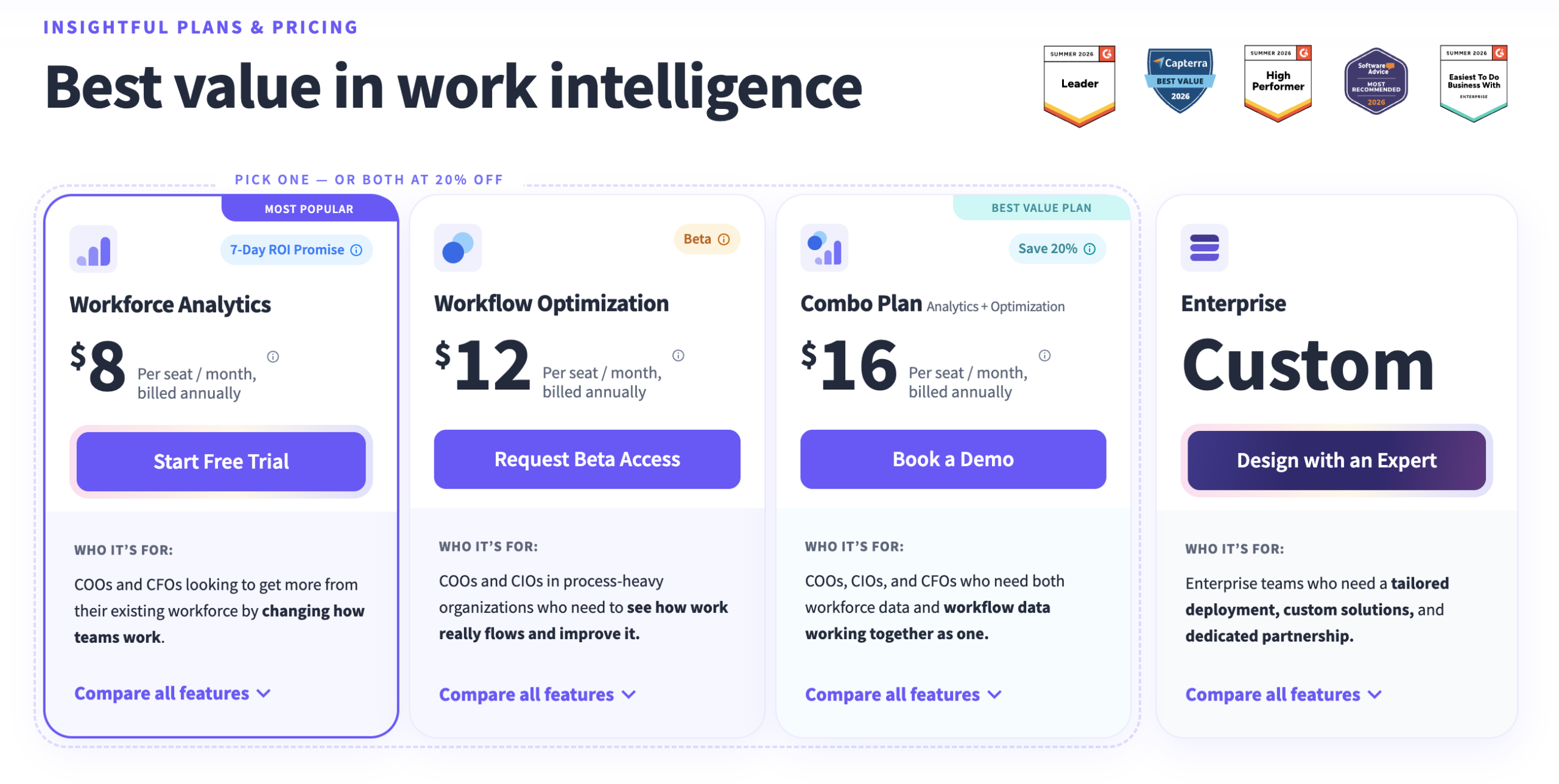
Workspace Security, screen recording, and on-demand screenshots aren’t included in any base plan. They’re add-ons, priced separately, and charged across every active seat no matter how many employees are using them.
“I wish [Insightful] wasn’t so expensive for all the premium features. There are 5 or 6 additional features that whenever we try to access them, it requires a higher paid subscription.”
– Capterra review from Sebastian M., COO, Health & Fitness
| Plan | Annual (per seat/mo) | What’s Included |
| Workforce Analytics | $8 | Time tracking, attendance, productivity trends, app and website usage, AI Adoption Report, reporting |
| Workflow Optimization | $12 | Workflow mapping, tracking, and measurement. Currently in beta, access by request only |
| Combo Plan | $16 | Workforce Analytics + Workflow Optimization bundled. Includes work location insights and a dedicated account manager |
| Enterprise | Custom | Team-based utilization, SSO, audit logs, insider threat detection. Contact sales |
| Add-ons (all plans) | From $0.50–$4/seat | Workspace Security ($4), on-demand screenshots ($4), increased-frequency screenshots ($3), screen recording ($4), data warehouse integrations ($0.50) |
Insightful offers a 7-day free trial and requires no credit card. The trial gives you access to all features with one exception: Automatic Time Mapping needs extended use to work, so it won’t show up during the trial window.
Insightful pros and cons
| ✅ Pros | ⚠️ Cons / Watch-Outs |
| Automatic tracking cuts out manual timesheets. | Scoring runs on screen activity, so roles with heavy off-screen work can show lower scores than their real output. |
| Employees get access to their own dashboard in Visible mode. | Stealth mode removes that access entirely, along with task and project tracking. |
| No keystroke logging, even in Stealth mode. | Automatic Time Mapping infers time from app and URL patterns, which is less reliable than manual task-level logging for billing or payroll. |
| Compliance covers SOC 2, ISO 27001, GDPR, CCPA, and HIPAA. | Differentiating features like Workflow Optimization sit behind the $12+ tier, and add-ons like Workspace Security and screen recording cost extra on top. |
| 4.8/5 on Capterra across 228 reviews, 4.6/5 on G2. | Desktop and laptop only. No GPS or mobile tracking for field or deskless team members. |
| Support is consistently praised across reviews. | Time zone management is difficult for teams spread across regions, since employees set their own timezone with no manager-side visibility into which one they’re using. |
Common concerns about Insightful
No tool is perfect. What’s important is understanding what the tool you choose does well and where it falls short. For Insightful, here are the issues many users reported running into.
- Productivity scores undercount real output. Activity-based scoring works best for roles that require significant keyboard input. For roles with heavy off-screen work, like calls, meetings, or reading, the score can make a high performer look idle. One manager on Reddit reported a top associate showing 2 to 3 hours of “work” a day despite carrying out their duties well. Set expectations with your team before the first report goes out.
- Idle time detection misses real work. Dual monitors, docking stations, and long stretches without a click all get read as inactivity, even when someone’s on a call or reading code. One Capterra reviewer flagged the same pattern during Microsoft Teams calls specifically, saying idle time wasn’t registering accurately during meetings and collaborative sessions. Consider piloting with a small group before rolling out company-wide.
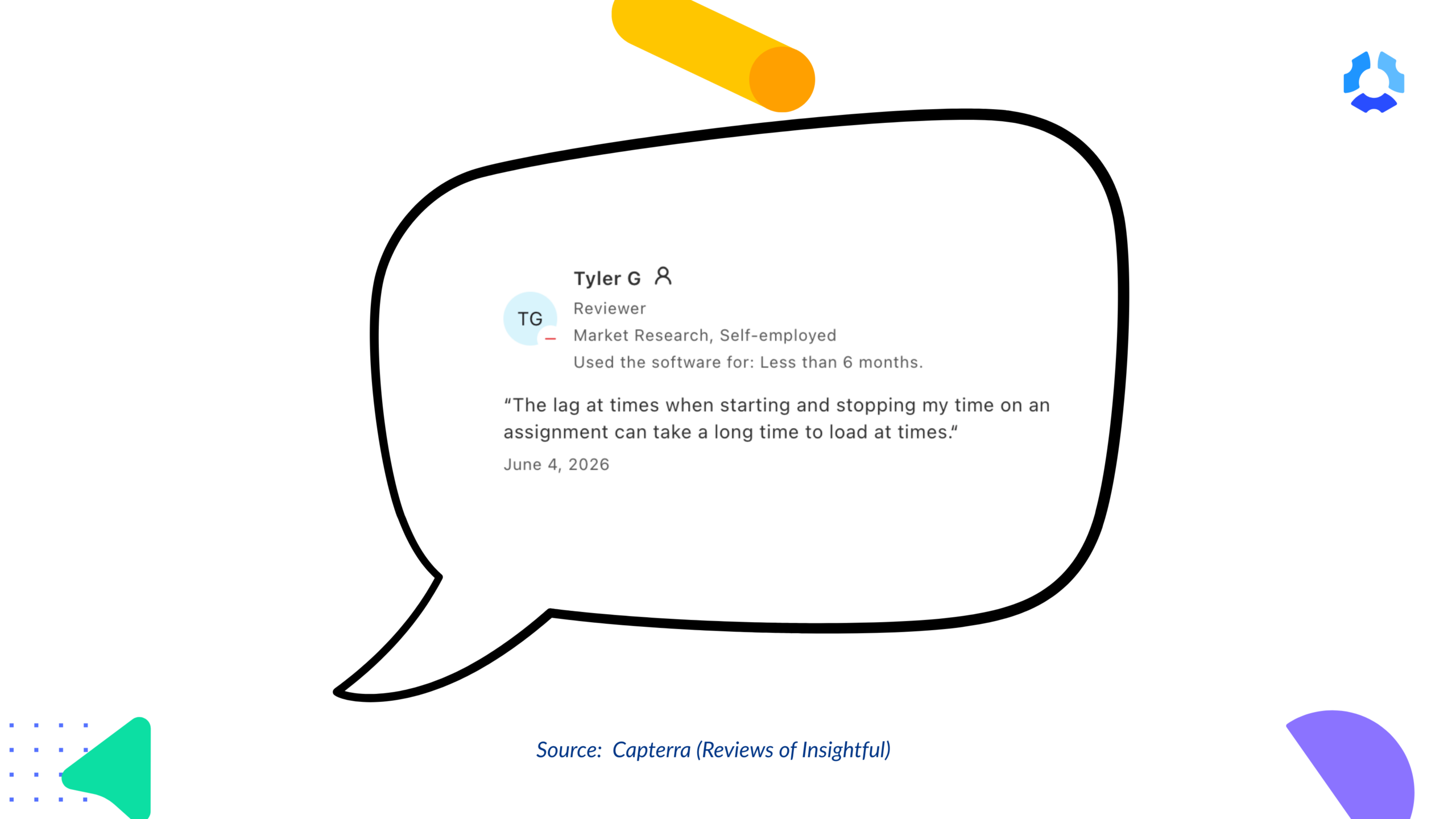
- Timer and sync lag. More than one Capterra reviewer reported delays starting or stopping time on assignments, and a live dashboard that occasionally shows numbers slightly behind what’s been logged. Insightful says the recorded data corrects itself once it syncs, but the lag is real in the moment. Test it against your own workflow before you rely on real-time views for anything time-sensitive.
- Pricing and billing surprises. Most teams end up needing the $12+ tier to reach the features that made Insightful worth considering in the first place, and screen recording or Workspace Security cost extra on top of that. A few Trustpilot reviewers also reported disputes over auto-added user seats and unclear invoicing, including one case involving several hundred dollars in charges for machines the company thought it had deactivated. Make sure to confirm how seats get added and removed before you scale past a handful of users.
Don’t treat these as reasons to avoid Insightful. Use them instead as a checklist to determine whether these shortcomings will hinder what you’re trying to achieve with it.
Is Insightful right for your team?
Every tool solves something for someone. Here’s how to tell if Insightful is for your team, or if you’d be forcing a fit.
Consider Insightful if:
- Your team is desk-based and computer-bound most of the day.
- You need compliance-grade analytics in a regulated industry like finance, insurance, or healthcare.
- You’re rolling out AI tools and want visibility into real adoption.
- You run a BPO or call center managing high-volume remote staff.
- Your main pain point is timesheet inaccuracy and manual time entry.
Consider looking elsewhere if:
- A meaningful share of your team’s work happens in meetings, client calls, or off-screen.
- You need tracked time to connect directly to project budgets, client invoicing, or automated payments.
- If you’re budget-constrained at scale.
Insightful alternatives to consider
Insightful isn’t the only option in this space, and it isn’t the best fit for every team.
To help you find the best fit for your team, below is how three of the best Insightful alternatives compare.
| Tool | Best for | Strengths vs. Insightful | Watch-outs |
| Hubstaff | Teams that need time tracking tied to the financial side of the business like project budgets, client invoicing, and global payroll, not just activity data. | Converts tracked hours directly into budgets, invoices, and global payments through integrations like Deel, Wise, and Gusto. Adds GPS and geofenced tracking for field teams, which Insightful doesn’t offer. Matches Insightful on compliance (SOC 2, HIPAA, GDPR) and adds an AI usage layer of its own. See how Hubstaff compares against Insightful in detail. | Built more around the operational and billing side of time tracking and financial outcomes than deep workforce analytics. |
| ActivTrak | Office-based teams focused on AI ROI and executive-level workforce reporting, not raw activity tracking. Learn if this is the right fit for your team in our ActivTrak review. | Leans further into AI impact measurement, tying AI usage to actual productivity and capacity gains. Captures offline work through calendar integrations, and its Work Advisor lets leaders ask questions in plain language. | Built for insight at the leadership level, not day-to-day operational tracking. If you need task-level time tracking or project-based logging, ActivTrak isn’t built around that. |
| Time Doctor | Remote contractors and outsourcing workforces, agencies billing by the hour, BPOs managing large distributed teams. Discover how it can help your team in our Time Doctor review. | Benchmarks your team’s activity against 260,000+ anonymized users across industries, something Insightful doesn’t offer. Detects mouse jigglers and simulated activity with more depth than basic input tracking. | Positioned more as a tracking-first tool than an analytics platform. Workforce-level insight and reporting depth don’t go as far as what Insightful offers. |
If you want to see how much more efficient your workflows can look operationally, while still getting the productivity monitoring and workforce analytics you’d expect from a tool like Insightful, Hubstaff gives you all of that.
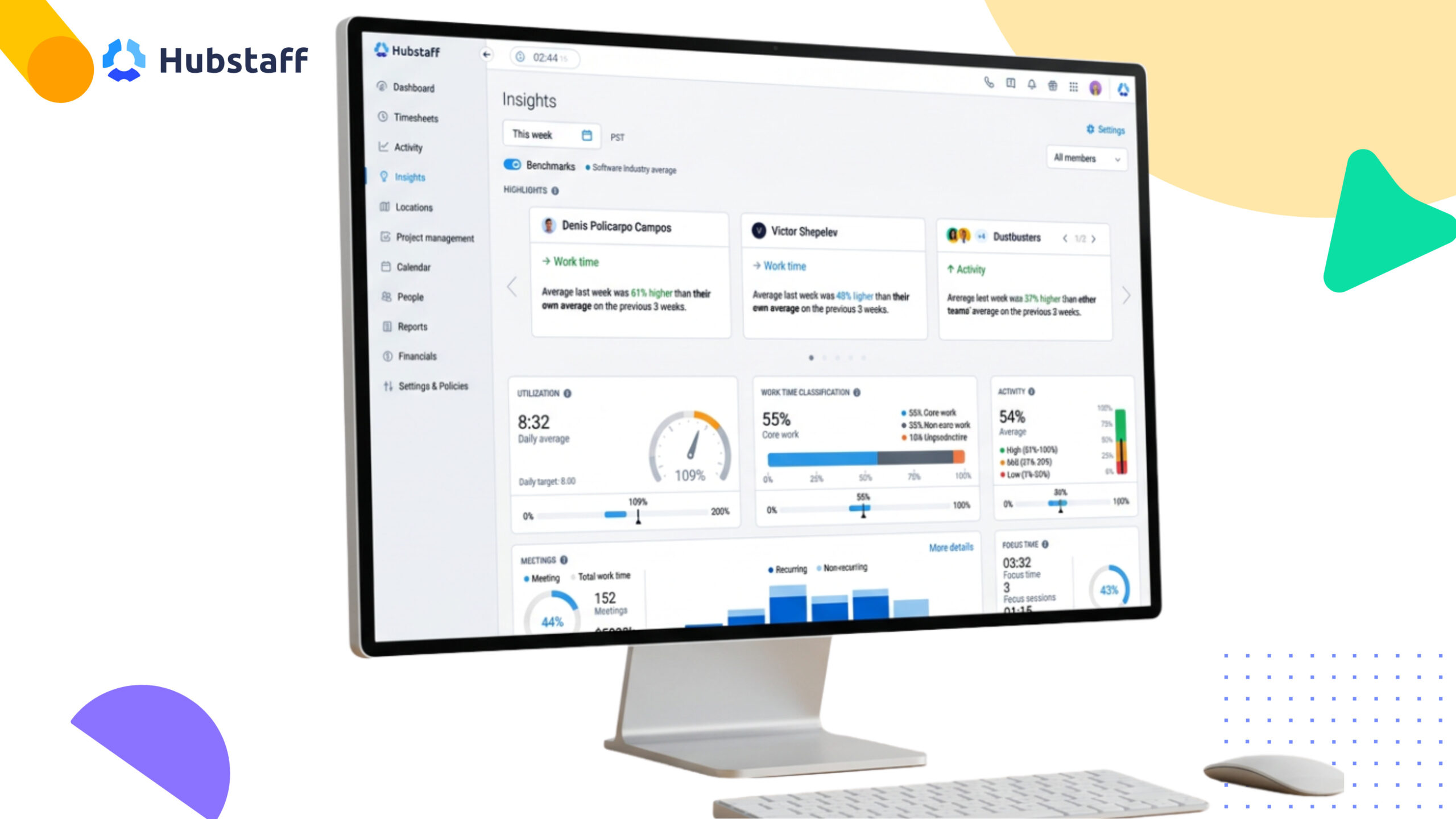
Book a demo to see how it can help your team.
Frequently asked questions about Insightful
What is Insightful used for?
Insightful is used to track computer activity, time, and productivity across a team. Companies use it for automated time tracking, attendance, workforce analytics, and increasingly, tracking AI tool adoption.
Is Insightful worth the cost?
For desk-based teams that need clean, structured activity data, yes. At $8 per seat on the base plan, it’s competitive for small teams. However, the cost climbs fast once you add Workspace Security, screen recording, or move up to the $12 to $16 tiers for workflow analytics. The real cost depends on which features you need.
Does Insightful record your screen?
Yes, optionally. Insightful can take periodic screenshots and, on higher plans, full screen recordings. Both are configurable: admins can set the frequency, and screenshots can be disabled entirely, including in Stealth mode where employees have no visibility into the setting.
Is the Insightful app safe?
Insightful is compliant with SOC 2 Type II, ISO 27001, GDPR, CCPA, and HIPAA guidelines, with encrypted data at rest and in transit. It does not log keystrokes. Whether it feels “safe” to your team primarily depends on how transparently you roll it out.
What can Insightful see?
Insightful sees app and website usage, active and idle time, mouse and keyboard activity levels, and time spent on tasks or projects. With permissions enabled, it can also capture screenshots or screen recordings. It does not read email content or log individual keystrokes.
Can Insightful take screenshots?
Yes. Screenshots are optional and configurable by frequency. In Visible mode, employees can typically see when this is active. In Stealth mode, they can’t. They also won’t know if screenshots are enabled for their account.
Does Insightful detect mouse jigglers?
It can, but Insightful doesn’t label it as a dedicated mouse or simulated-activity detection feature the way Time Doctor’s Unusual Activity Report does.
Want to see how Hubstaff compares? Book a demo with our team.
Most popular
The Top Time Management Statistics in 2026 for Workplace Productivity
We all have the same hours in the day. But when employees struggle to focus, those hours likely won’t be used effectively. Witho...
The Best Coaching Conversations Start With Productivity Data
Most coaching conversations happen too late. A deadline is missed, or a client flags a problem, and then a manager schedules a sit...
A Quick Guide to Work Order Management
From quick fixes to long-term stability, work orders are crucial to asset management and helping managers keep operations running...
How to Identify High Performers Using Work Patterns
Every business has top performers, and managers are told to find them all the time. But in most cases, they default to approaches...