The difference between using monitoring for trust vs. for control often comes down to a few settings. Get them wrong, and even a well-intentioned setup can make employees feel watched rather than supported.
It's a tension that managers across industries are actively navigating. On platforms like Reddit, fair monitoring practices are among the most-discussed management topics because the line between visibility and surveillance is becoming increasingly blurry.
Hubstaff's privacy settings are designed to help you stay on the right side of that line, giving your team clarity on what's being tracked, why, and who can see it.
You've chosen what to be notified about. Now make sure everything else is configured with the same intention.
Screenshots
Screenshots are often the most invasive and widely misunderstood part of any monitoring setup. Before enabling screenshots for your team, review whether you really need them. It can often feel very invasive to teams and create a sense of fear.
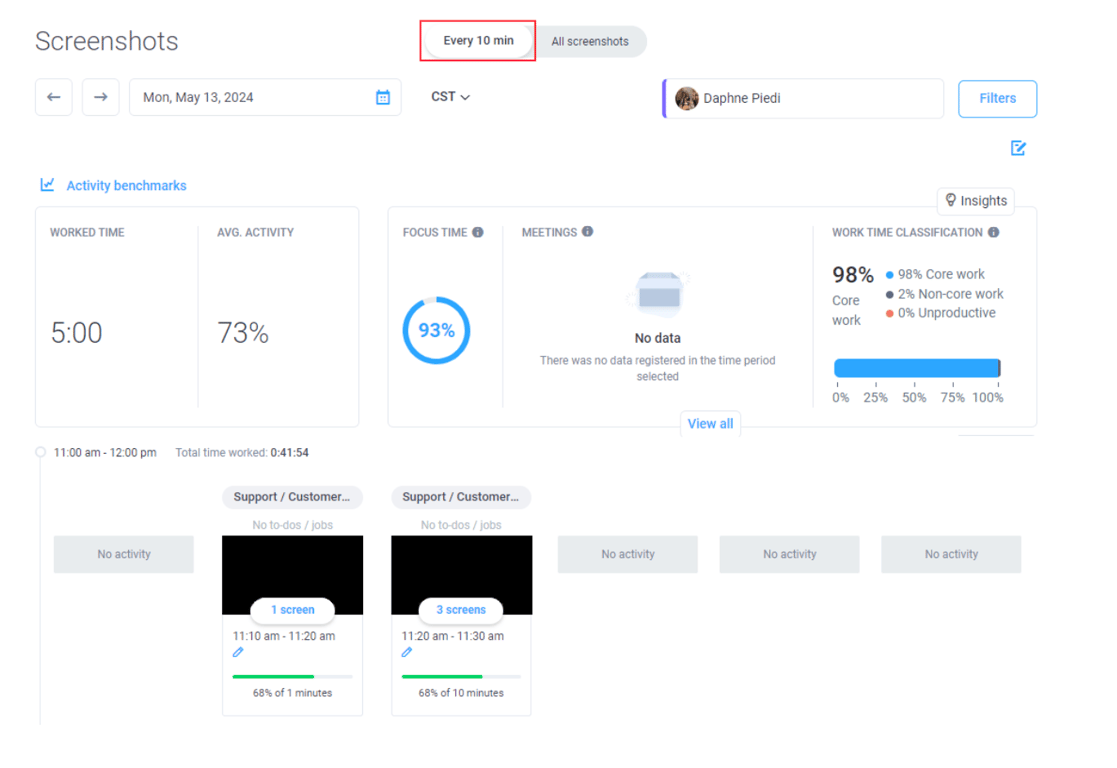
However, time tracking with screenshots is the most relevant for compliance-driven industries, agencies with client transparency requirements, and large companies tracking activity across company-owned devices.
For most knowledge workers, none of these apply as much. That’s why Hubstaff positions screenshots as fully optional and customizable. Here’s how they work:
- From your organization settings, go to Activity & Tracking.
- Enable or disable screenshots entirely.
- Set your preferred frequency (e.g., 1, 2, or 3 screenshots every 10 minutes)
If screenshots are absolutely mandatory, configure them thoughtfully:
- Use the blur feature: Apply this setting to blur captured images and prevent sensitive personal information from being captured and stored.
- Set frequency to the lowest useful interval: 1 screenshot per 10 minutes is a reasonable starting point. The maximum of 3 generates significantly more data without proportionally more insight. Unless you’re in a high-compliance industry, don’t overdo it.
- Limit who can view them: Use role-based access to set screenshot access to the direct manager only, not the entire organization.
App and URL tracking
Knowing your team is active is different from knowing which tab they were in at 2:00 PM on Tuesday. It’ll only create more friction than value.
You can track what website and application your team used during a tracked session, but URL data is rarely what managers need to make good decisions. For remote teams, especially, it's one of the fastest ways to make employees feel like they're being watched rather than trusted.
Hubstaff’s strong focus on data privacy settings gives you a meaningful advantage:
- Hide specific URLs and app names: Managers see productivity signals without seeing exactly where someone was browsing.
- Adjust settings per team member: Field teams, contractors, and knowledge workers don't all need the same configuration.
- Disable tracking entirely for certain roles: Remove tracking where it adds no operational value. For example, a call center employee fielding calls all day probably doesn’t need URL tracking.
Easily configure App and URL tracking:
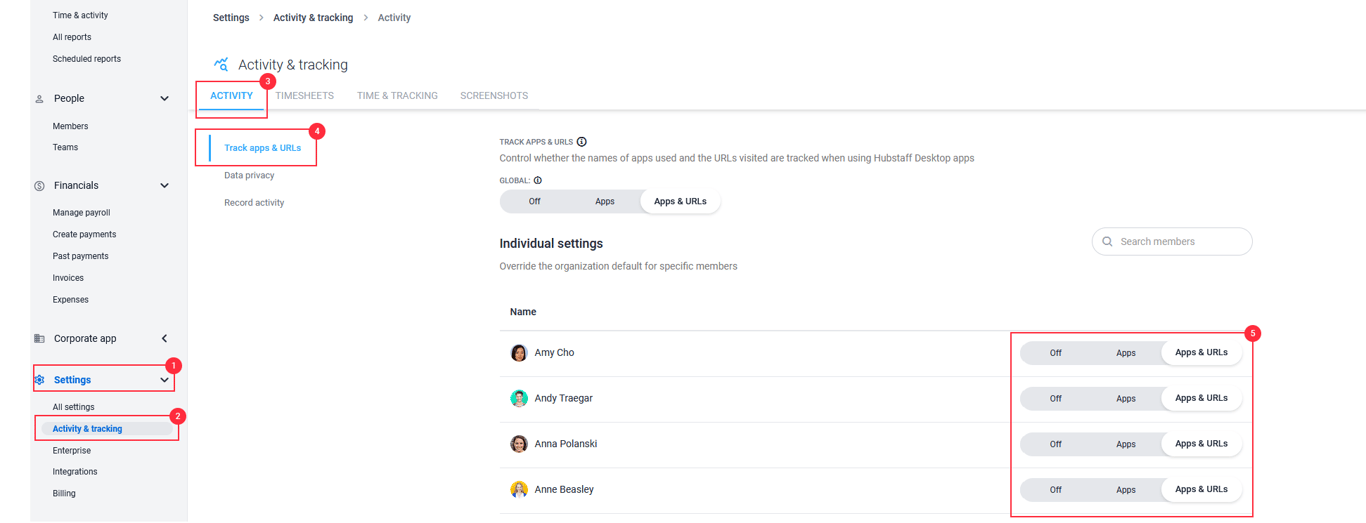
- Go to Settings > Activity & tracking in the sidebar menu.
- Adjust your preferences for app and URL usage as needed.
Start with the basic configurations. If your team expands globally or grows to require more visibility, you can always expand. That said, it's much harder to earn back team trust once it’s already been broken by excessive monitoring.
Activity levels and GPS
Activity levels are calculated based on the percentage of mouse and keyboard movement. A 42% activity score doesn't mean someone wasn't working. It could mean:
- They were in back-to-back meetings.
- Deep in a document, reading or researching.
- Working through a hard problem away from their keyboard
Without context, the number is misleading and erodes employee trust over time. If activity scores aren't driving meaningful conversations on your team, hide them from reports entirely.
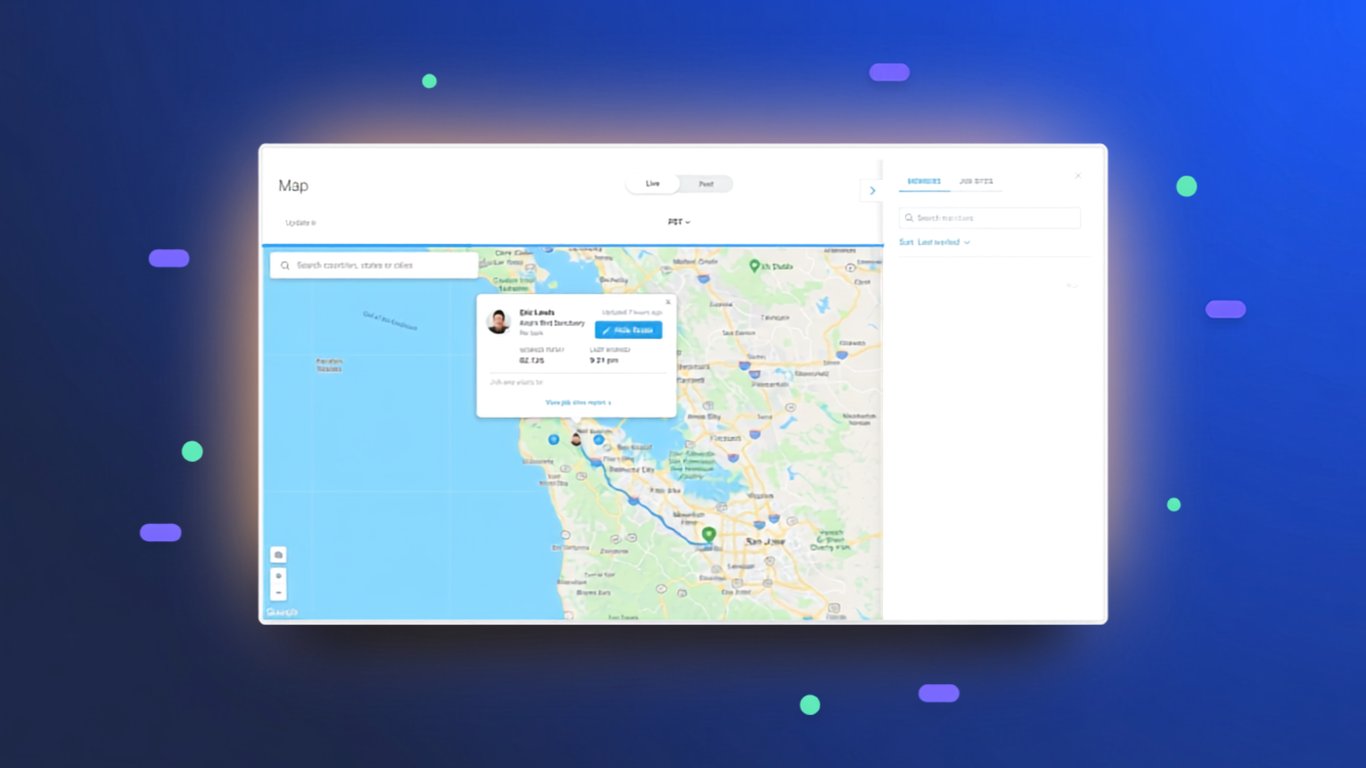
Similarly, GPS tracking for field-based roles like construction crews, delivery drivers, and mobile service workers provides valuable context. But for remote or office-based employees, this location data is irrelevant and often signals distrust. This is where context matters.
To configure GPS tracking in Hubstaff, follow these steps:
- Go to Settings > Schedules > Map > Track Locations (Mobile only).
- Choose your preferred tracking option: Off, Tracking time, Also during shifts, or Always.
- Enable the setting for your organization or for individual users as needed.
- Make sure location services are enabled on the mobile device for GPS tracking to function.
A good rule of thumb: if location data wouldn't change a decision you're making about that employee, it shouldn't be collected.
Employee control over their own data
Most monitoring setups are configured entirely from the manager's perspective. With Hubstaff, settings are built with everyone in mind, empowering employees with meaningful insights into their own work without losing the accountability the tool was built to provide.
These three settings are what separate a trust-based configuration from a surveillance one:
- Employees can delete their own screenshots and time entries. If someone forgets to stop their timer during a personal errand or notices a screenshot has been taken while viewing sensitive personal info, they can correct it themselves. This type of control removes anxiety around missing hours and always-on tracking.
- Employees receive a notification every time a screenshot is taken. Employees know exactly what's being collected and when. Every time a screenshot gets captured, they get notified.
- Activity data is visible only to the people who need it. A team member's time data shouldn't be accessible to colleagues at the same level or to leadership outside their direct chain of command.
- Insights provide context behind data collection. Insights can help employees understand the context behind why their employer is collecting data. The ability to see data like hours spent in meetings, focus time, and utilization rates helps employees advocate for time data that benefits them.