(Webinar) Master Hubstaff in 30 Minutes: A Comprehensive Walkthrough

 4 min read
- Hubstaff Insights' Unusual Activity Detection flags anomalies like suspicious apps or low input automatically, cutting the 2–4 hours managers spend weekly reviewing data down significantly.
- 62% of Hubstaff users reported unusual activity, making Smart Notifications and real-time alerts essential for keeping remote teams accountable without resorting to micromanagement.
- New features like Member Limits and Manual Time Approval give managers tighter budget control and streamlined timesheet oversight, reducing admin work across distributed teams.
At Hubstaff, we understand the value of time: your time, your team’s time, and the time it takes to manage your time effectively. That’s why we hosted a webinar aimed at helping you master Hubstaff in 30 minutes.
Check out the video below to see the full 30-minute webinar on mastering Hubstaff time tracking, or if you have limited time, we’ll summarize it below.
Hubstaff Walkthrough
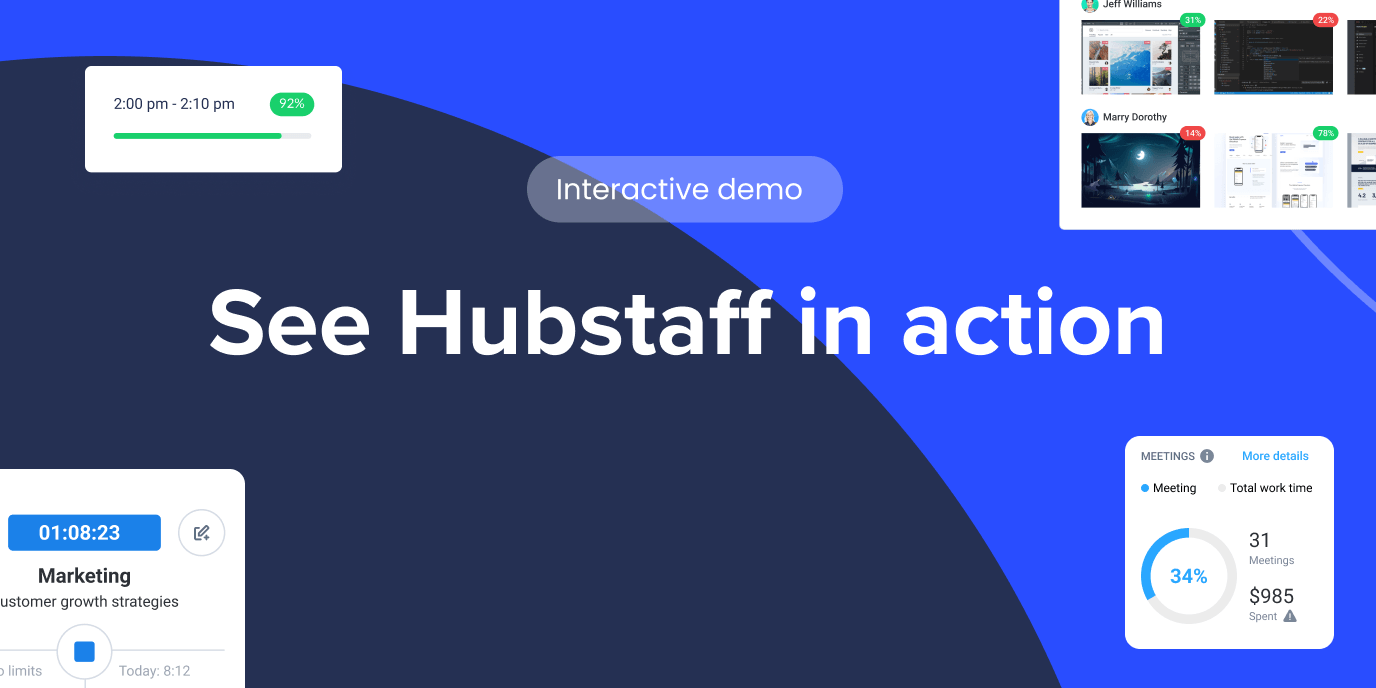
Dive into our interactive demo and explore the features that make managing global teams easier than ever.
Master Hubstaff in 30 Minutes: A Quick Overview
Hoping to master Hubstaff in less than 30 minutes? We’ve got a short summary of the session packed with tips, tricks, and sneak peeks into new features. But first, we’d be remiss not to thank our two expert presenters.
- Jeff Hurd / Senior Product Manager. Hubstaff Insights and Smart Notifications.
- Gabriel Ayala / Customer Success Manager. Actionable tips, tricks, and insights from years of supporting our customers.
Together, they shared their tips and tricks on maximizing Hubstaff’s tools for productivity, reporting, and remote team management.
Spotlight on Hubstaff Insights: Detecting Unusual Activity
Webinar shorts 1 (Unusual Activity scenario) by dave923Jeff introduced Hubstaff Insights, focusing on its powerful Unusual Activity Detection feature.
Here’s a quick breakdown:
- Types of Unusual Activity:
- Unusually High Activity: Continuous movement detected for 30+ minutes.
- Low Single Input: Minimal keyboard or mouse use for 50+ minutes.
- Suspicious Applications: Detects apps designed to mimic activity.
- Practical Use Case: Jeff shared a real-world scenario of how a manager spending 2-4 hours weekly reviewing data could streamline the process with Insights. Instead of sifting through data, Hubstaff proactively flags anomalies to reduce admin time and ensure teams are more productive.
- New Features on the Horizon:
- Confidence Score: Highlights the most unusual activities.
- Exportable Data: Easily export unusual activity data for further analysis.
How to read an unusual activity instance
Clicking into a member’s instances shows the date and time of each one, plus screenshots from that window if you have access.
The numbers need a little interpretation:
- Total activity: Jeff called a 99% reading over nearly two hours exceedingly rare. He tried to hit it himself and couldn’t.
- Activity breakdown: This is a ratio of keyboard to mouse movement, so 95% keyboard means that of the time the person was moving, almost all of it was typing. If the role involves clicking through screens, that’s worth a closer look.
- View full day: This icon jumps straight to the member’s screenshot page for the date in question, so you can see the full picture before drawing conclusions.
Jeff was careful about the framing: Hubstaff flags what sits far outside normal ranges and leaves the conclusion to you.
Smart Notifications: Staying Ahead with Real-Time Alerts
Webinar shorts 2 (Smart Notifications) by dave923Smart Notifications let you monitor and act on specific team behaviors. You can build a notification from scratch across a long list of metrics, or start from a template. Jeff demoed the “members using AI websites” template, which comes pre-loaded with AI sites and lets you add your own, even ones nobody on the team has visited yet.
The settings worth paying attention to include:
- Thresholds: Alerts can fire above or below a limit, so you can allow a certain amount of time on a category before hearing about it.
- Frequency: Hourly, daily, weekly, or monthly. A weekly digest listing everyone who crossed a threshold keeps you informed without the spam.
- Members: Target everyone, a single team, specific roles, or job types, and route the alert to managers or team leads instead of yourself.
- Delivery: Results land in Insights by default, but you can add email or Slack. Jeff runs his own alerts through Slack and recommends it for anything you want to see immediately.
Triggered notifications also show up on the performance dashboard, right under the unusual activity widget, so you can see who tripped an alert and by how much.
Get more accurate insights with job types
Gabe’s first tip: classify apps and URLs by job type. On a member’s employment tab, you can assign a job type drawn from your organization’s industry, then classify applications and URLs per job type in the Insights settings.
This makes your Insights data more accurate. An app that counts as core work for a support rep might be a distraction for a designer.
For a large headcount, skip the one-by-one approach. The bulk update importer on the members page lets you download a template, fill in the job type column, and upload everyone at once.
Enhanced Team Management
At this point, Jeff turned things over to Gabriel, who walked attendees through tools designed to simplify team management. This portion of the presentation focused on setting up your Team functionality efficiently and accessing the most popular Hubstaff reports.
Teams Functionality
Webinar shorts 6 (Teams functionality) by dave923With Hubstaff’s Teams functionality, you can:
- Bulk assign projects to team members.
- Restrict visibility for team leads to only their team.
- Flexible permissions for approving timesheets, projects, and more.
Top Reports for Managers
Webinar shorts 7 (Reports) by dave923Watch the video above to learn how to run reports that will help you manage your team. Reports we covered include:
- Weekly Report: Clean summary of tracked hours.
- Time and Activity Report: Flexible and detailed report with filters for teams, projects, and activity percentages.
- Work Session Report: Timestamp-focused for start/stop details.
You can automate the reporting process with scheduled reports. Receive daily, weekly, or monthly reports automatically via email or Slack for better team management.
What’s New: Features We’re Excited About
Webinar shorts 9 (Sneak peek of new features) by dave923We’re excited to announce two highly-requested new features:
- Member Limits: Set caps on hours members can track per project to ensure budget adherence.
- Manual Time Approval: A long-awaited feature where employees can submit requests for manual time adjustments. Managers can then approve or deny them seamlessly within Hubstaff.
Wrapping Up: Your Next Steps
Mastering Hubstaff doesn’t have to take hours—just 30 minutes can transform how you manage your team’s productivity and time. Start exploring these features today, and see the difference for yourself!
We hope you enjoyed the webinar and left feeling equipped to boost your productivity. As we rewatched this webinar ourselves, we wanted to leave you with two key insights that stuck out:
- 62% of Hubstaff users reported unusual activity. This highlights the importance of tools like Insights and Smart Notifications to manage remote teams effectively.
- Strategic decision-making is crucial. With features like real-time alerts and advanced reporting, managers can focus on long-term strategy building rather than short-term manual oversight ripe with potential for micromanagement.
Check out the recording above to see our answers to audience questions and learn more. If you missed the session or need further assistance, our team is here to answer any additional questions. Reach out to us anytime at support@hubstaff.com.
Most popular
The Top Time Management Statistics in 2026 for Workplace Productivity
We all have the same hours in the day. But when employees struggle to focus, those hours likely won’t be used effectively. Witho...
The Best Coaching Conversations Start With Productivity Data
Most coaching conversations happen too late. A deadline is missed, or a client flags a problem, and then a manager schedules a sit...
A Quick Guide to Work Order Management
From quick fixes to long-term stability, work orders are crucial to asset management and helping managers keep operations running...
How to Identify High Performers Using Work Patterns
Every business has top performers, and managers are told to find them all the time. But in most cases, they default to approaches...